Free, five pages, no account needed
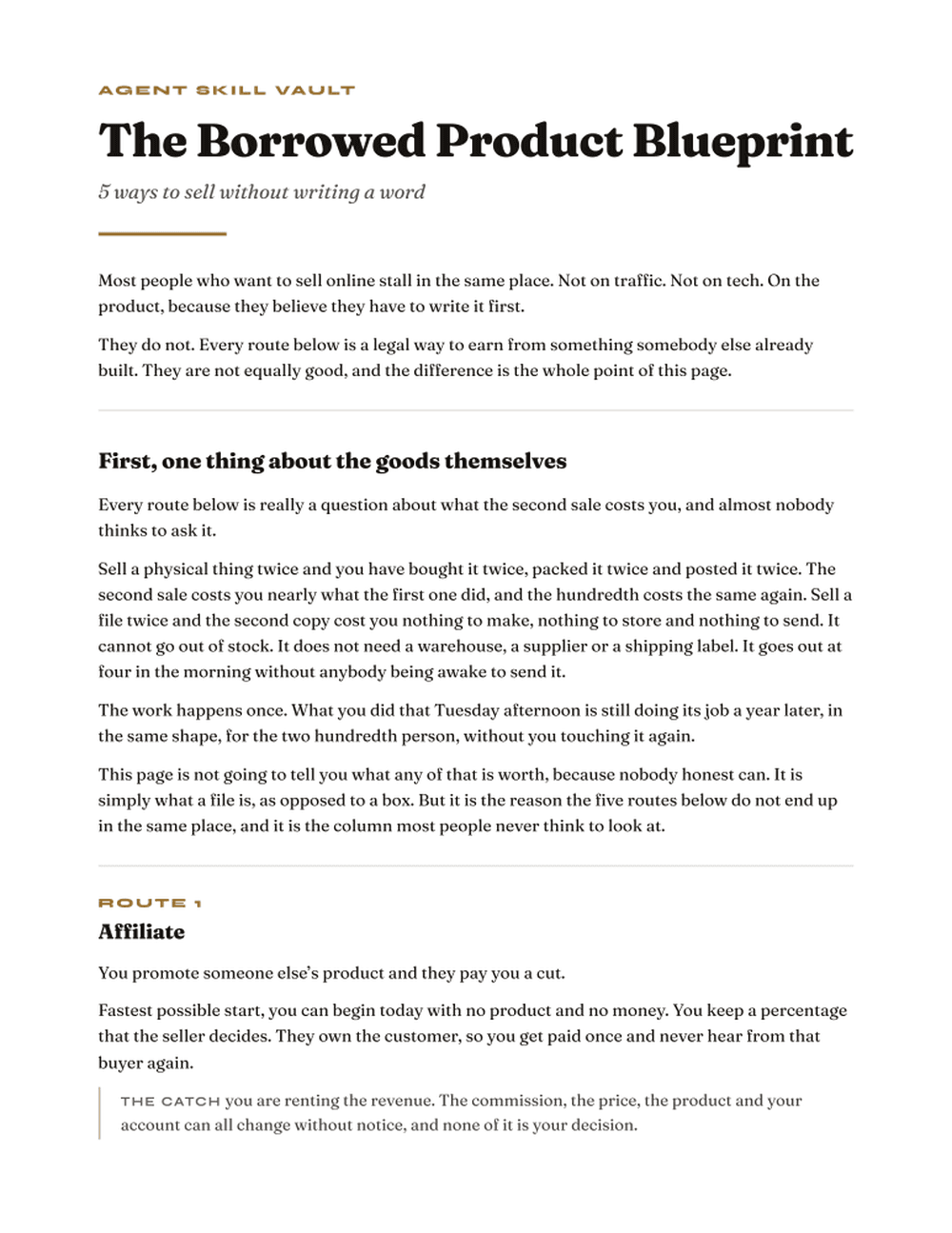
The Borrowed Product Blueprint
Five ways to sell a product you did not write, compared side by side, plus how to tell a good rebrandable book from a bad one before you pay for it. Read it first if you are still deciding.
Ebooks you can sell as your own
Someone else already wrote
the book you keep meaning to.
Finished, edited ebooks with the rights to make them yours. Change the name on the cover, set your own price, keep every dollar. No royalties, no attribution, no waiting three months for a first draft.
56 titles
Read Faster Secrets
The 7 Day Plan To Get Through Any Book
$12.99View details
The Business Reading Plan
Clear The Stack On Your Desk In 7 Days
$15.99View details
Become Her
The 7 Day Plan To Stop Waiting To Be Chosen
$15.99View details
Idea Bank Blueprint
How To Never Run Out Of Things To Post
$11.99View details
Shopify Secrets
The Recipe For Getting Your First Sale
$15.99View details
Google Ads Secrets
The 4 Step Blueprint To Successful Ads
$15.99View details
$10 A Day Ads
The Blueprint To Finding Winning Ads
$12.99View details
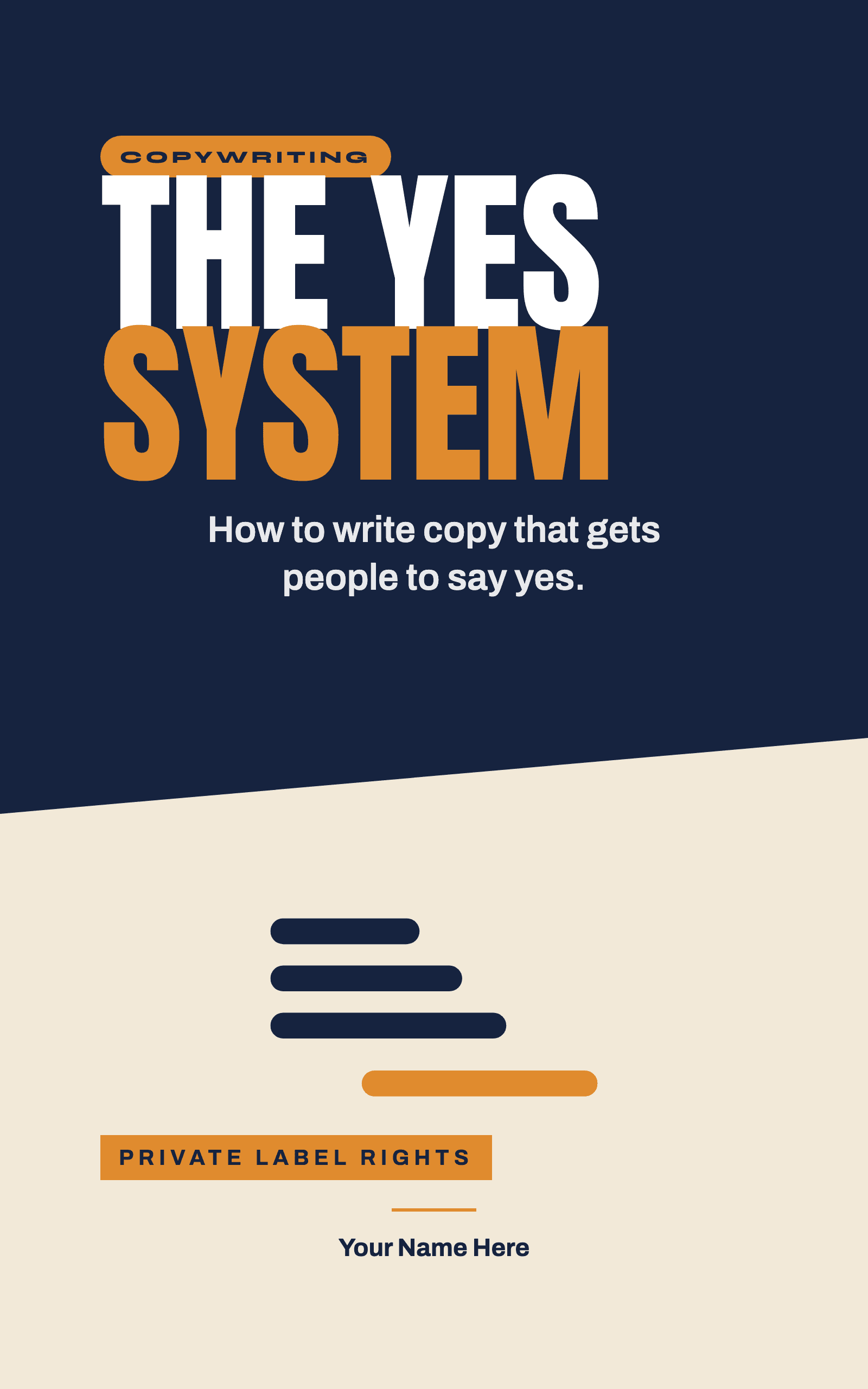
The Yes System
How To Write Copy That Gets People To Say Yes
$14.99View details
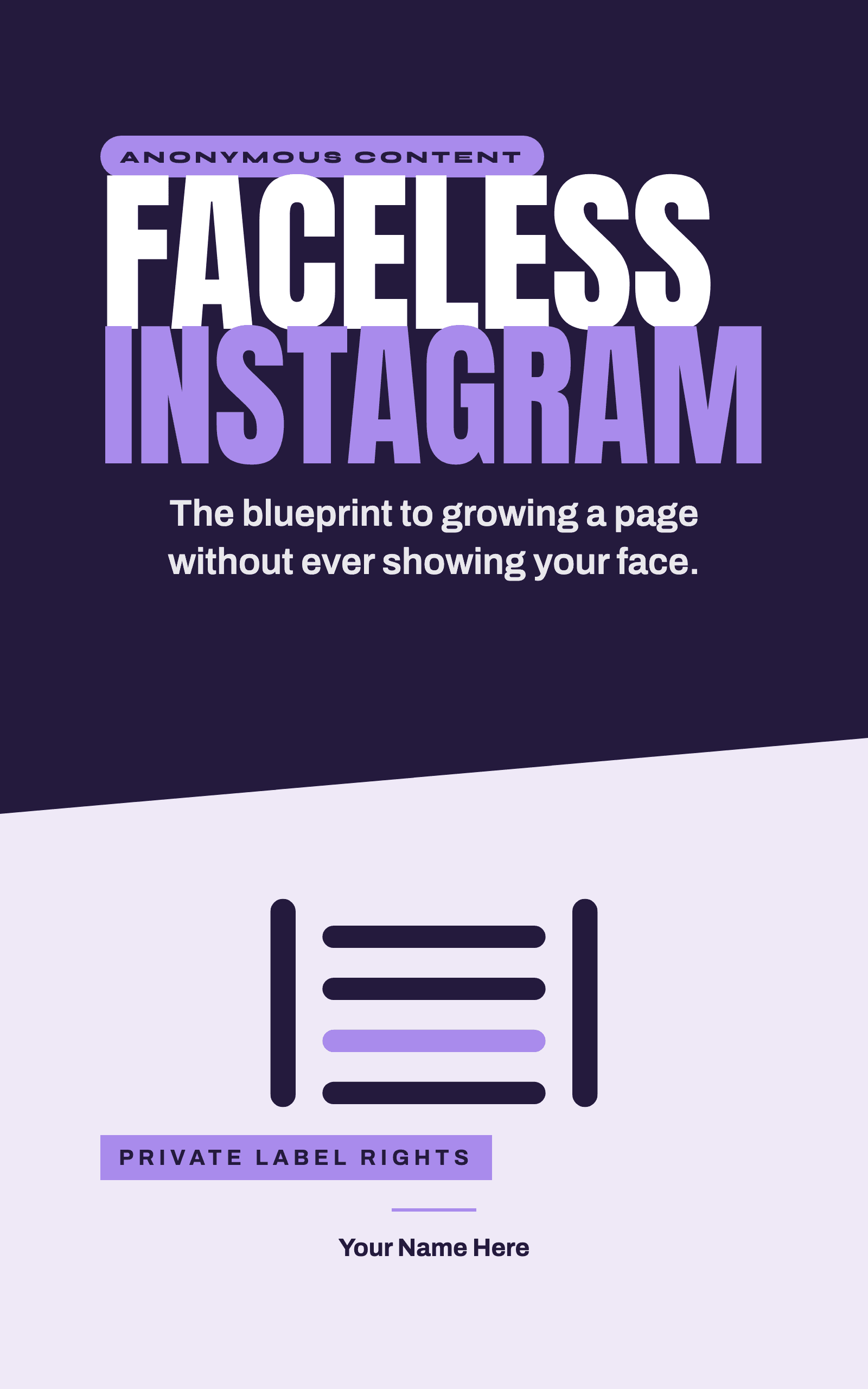
Faceless Instagram
The Blueprint To Growing A Page Without Ever Showing Your Face
$12.99View details

Thumbnail Secrets
How To Create Scroll Stopping Thumbnails
$13.99View details
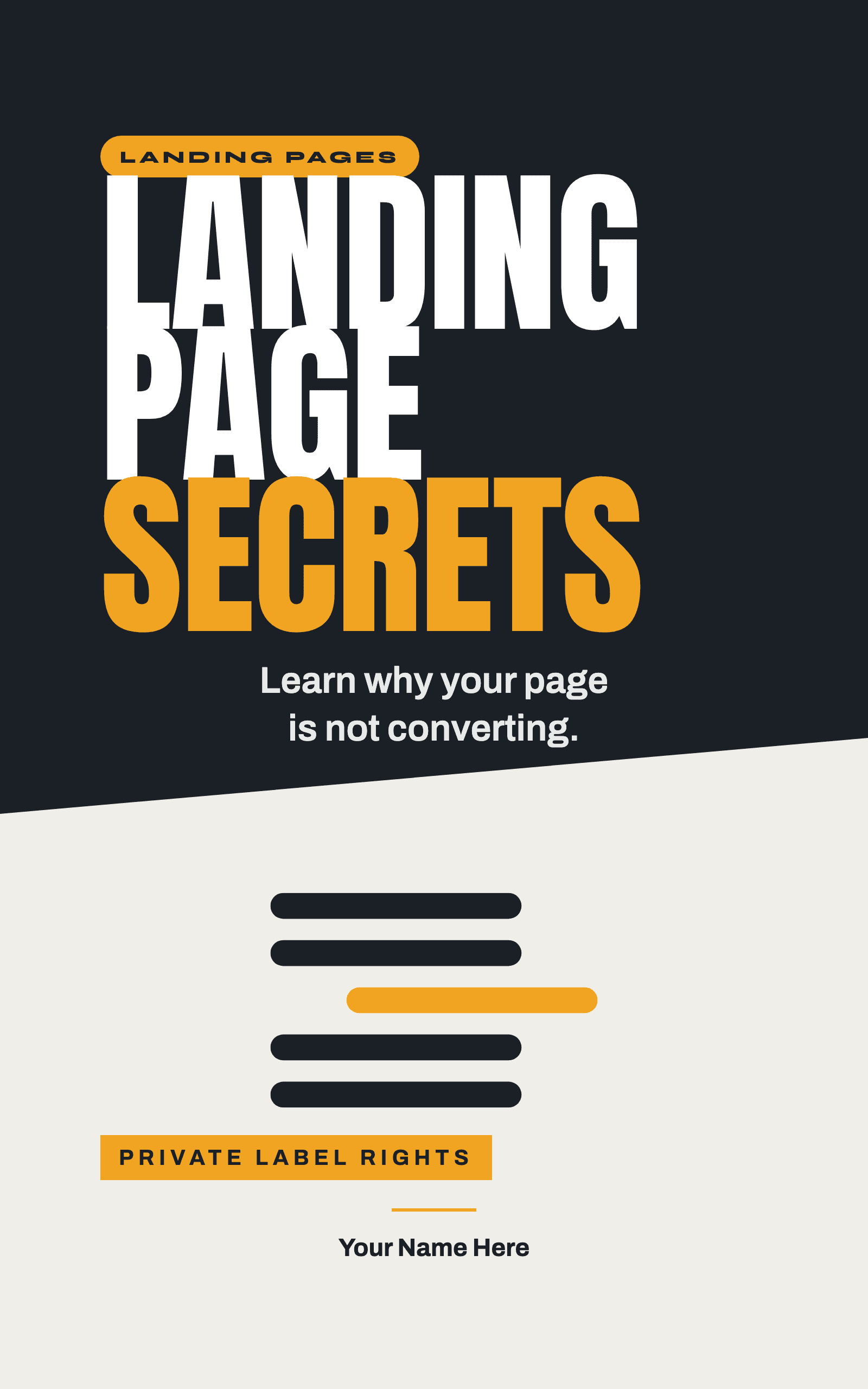
Landing Page Secrets
Learn Why Your Page Is Not Converting
$11.99View details
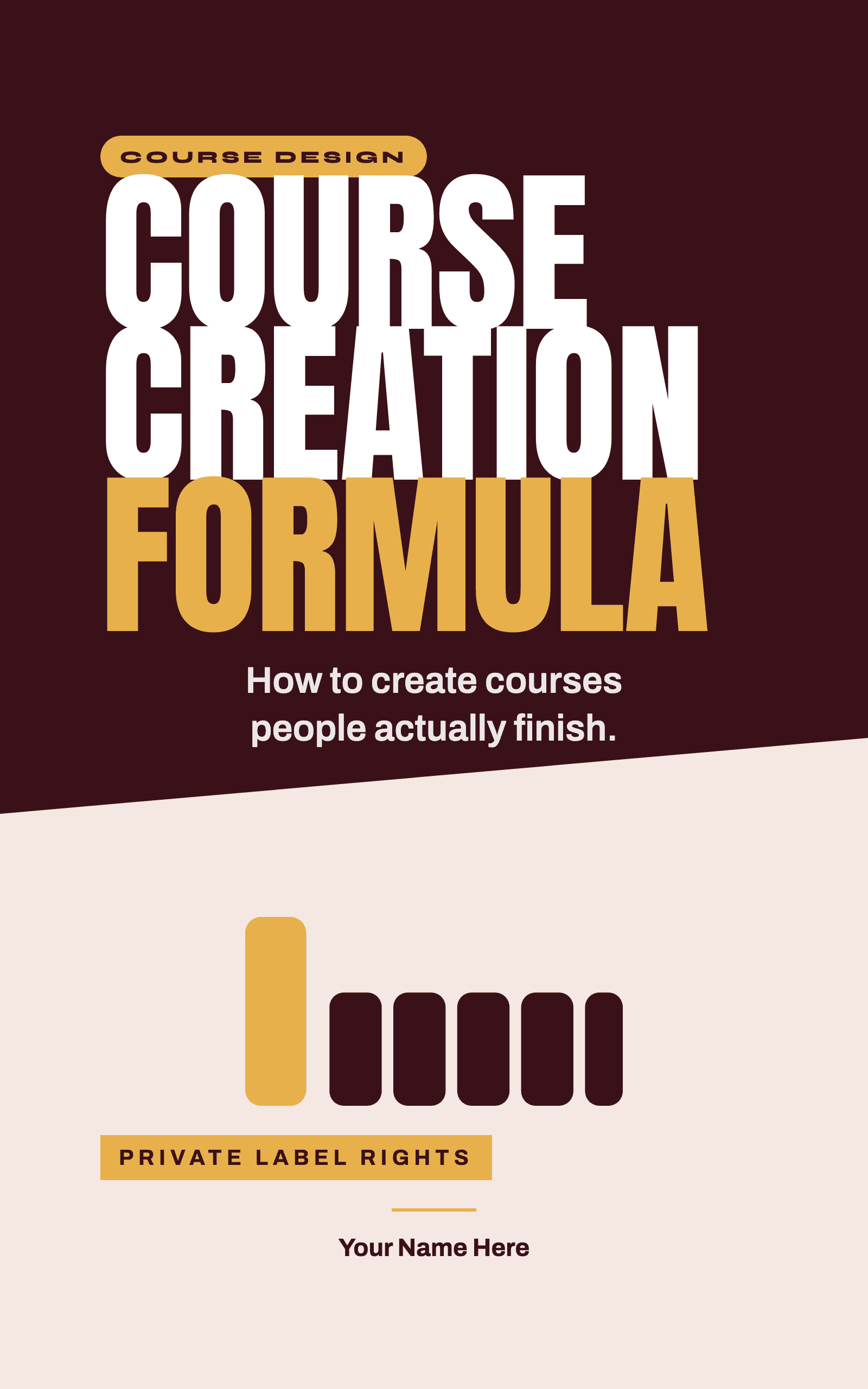
Course Creation Formula
How To Create Courses People Actually Finish
$12.99View details
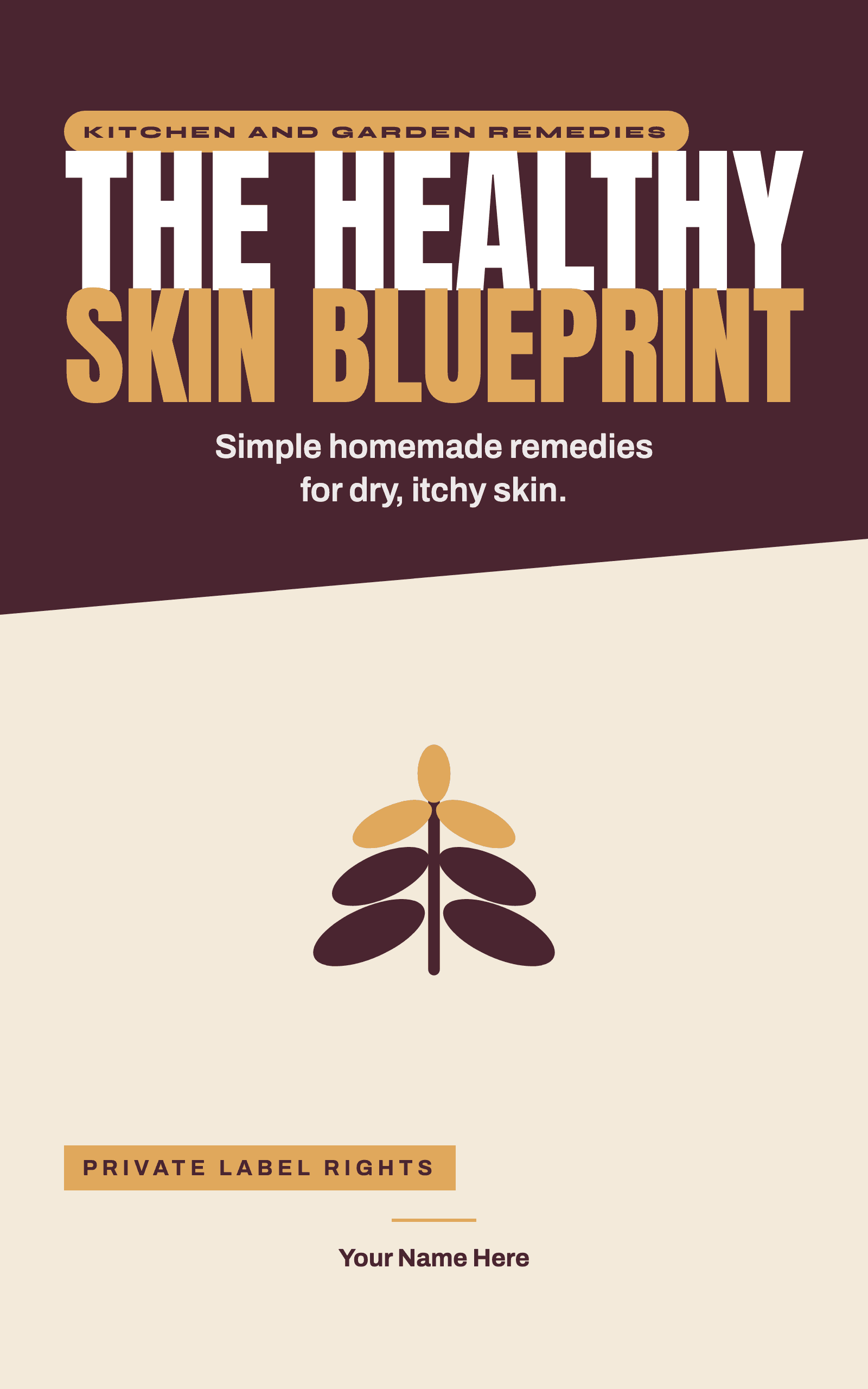
The Healthy Skin Blueprint
An Easy To Follow Guide For Dry, Itchy Skin
$12.99View details
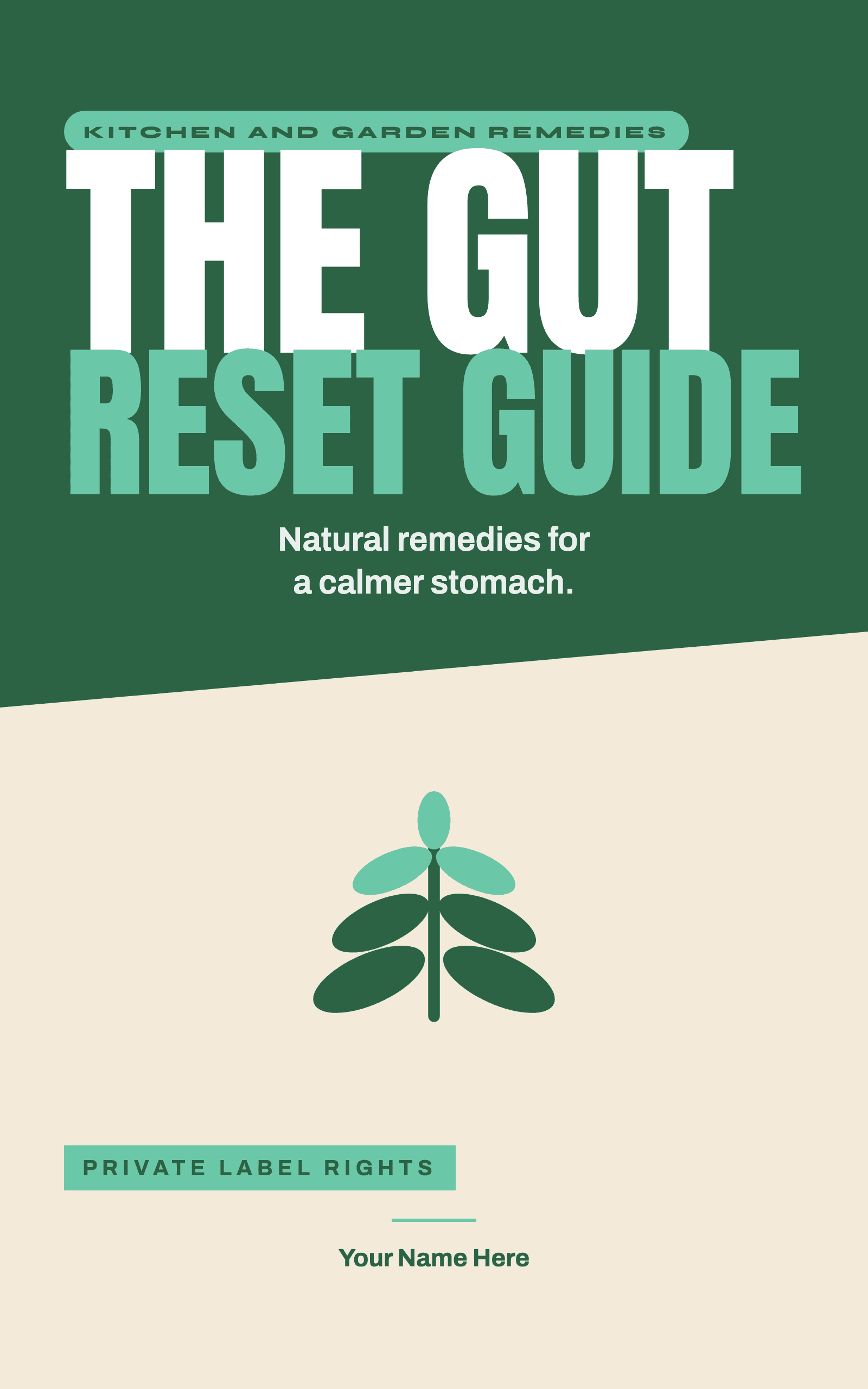
The Gut Reset Guide
Natural Remedies For A Calmer Stomach
$12.99View details
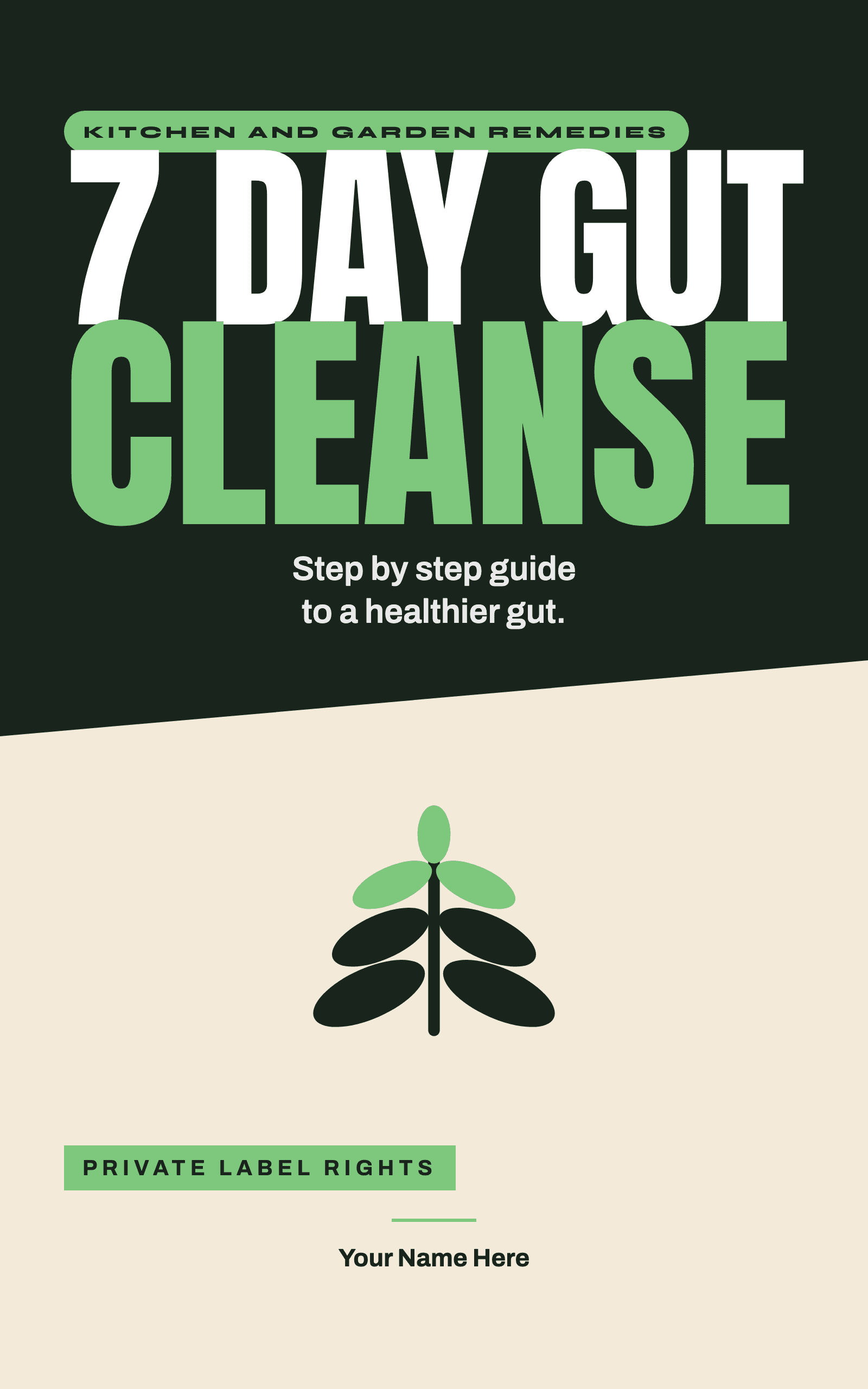
7 Day Gut Cleanse
Step By Step Guide To A Healthier Gut
$12.99View details
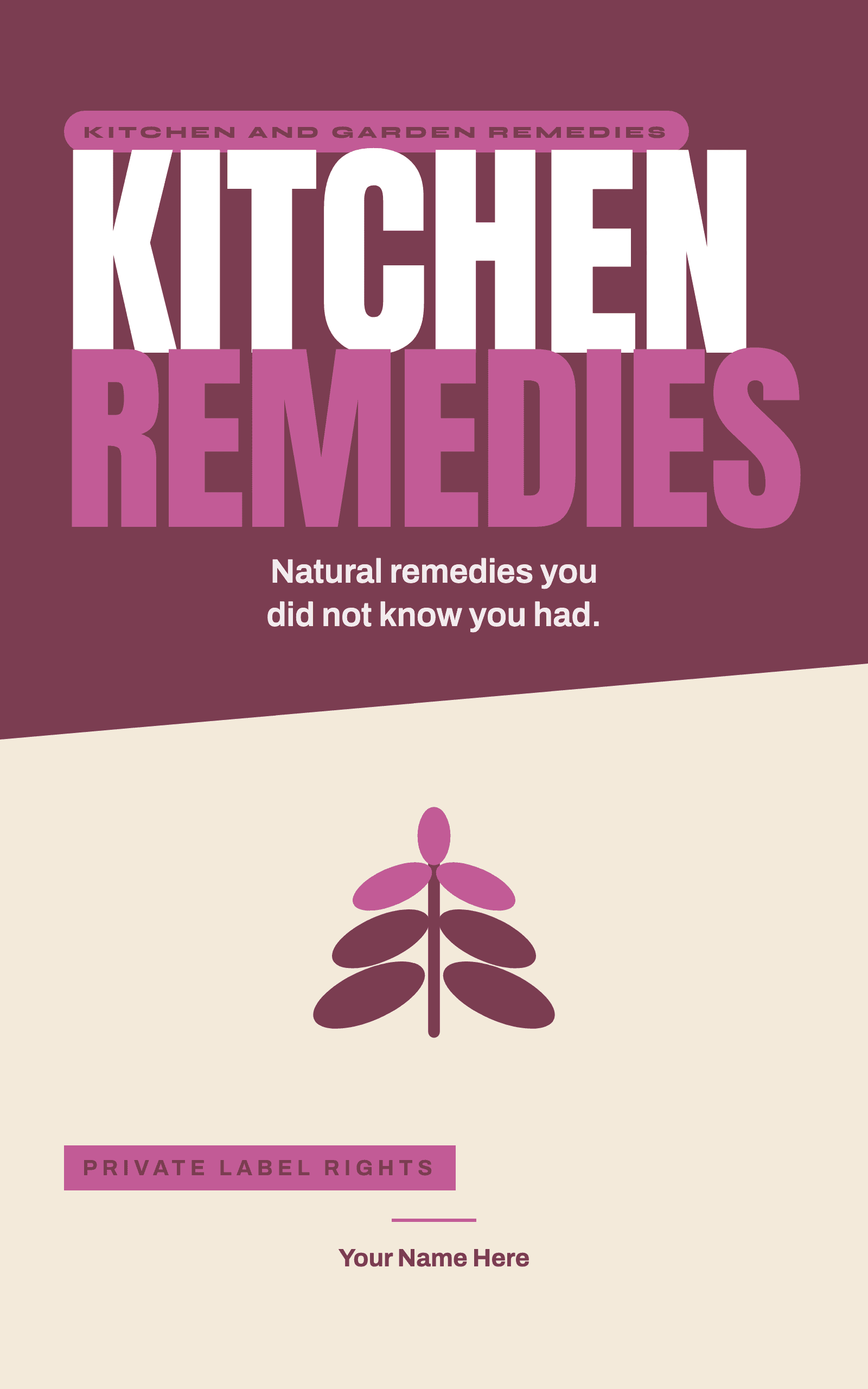
Kitchen Remedies
Natural Remedies You Did Not Know You Had
$12.99View details
The Ancient Tea Flower Guide
15 Tea Recipes For Natural Remedies
$12.99View details
The Cabinet Remedy Book
The Short List Worth Keeping In The House
$12.99View details
Home Remedies
A Step By Step Guide To Making Tea, Syrup, Oil and Poultice
$14.99View details
What To Say
Fill In The Blank Scripts For Posts, Messages, Sales Calls and Emails
$15.99View details
The One Look Blueprint
How To Make Everything Your Business Puts Out Look And Sound The Same
$14.99View details
The AI Rollout Blueprint
How To Get Your Team To Actually Use It
$15.99View details
Brand Deal Blueprint
How To Land Paid Brand Deals Without A Big Following
$14.99View details
Brand Deal Secrets
How To Know What To Charge And What To Charge Extra For
$15.99View details
Brand Foundation Blueprint
How To Know What You Post Before You Post It
$14.99View details
Checkout Secrets
How To Earn More From The Buyers You Already Have
$14.99View details
Creator Income Secrets
How To Get Paid Without Waiting For Permission
$15.99View details
Email Follow Up Secrets
How To Turn A Free Download Into A First Sale
$13.99View details
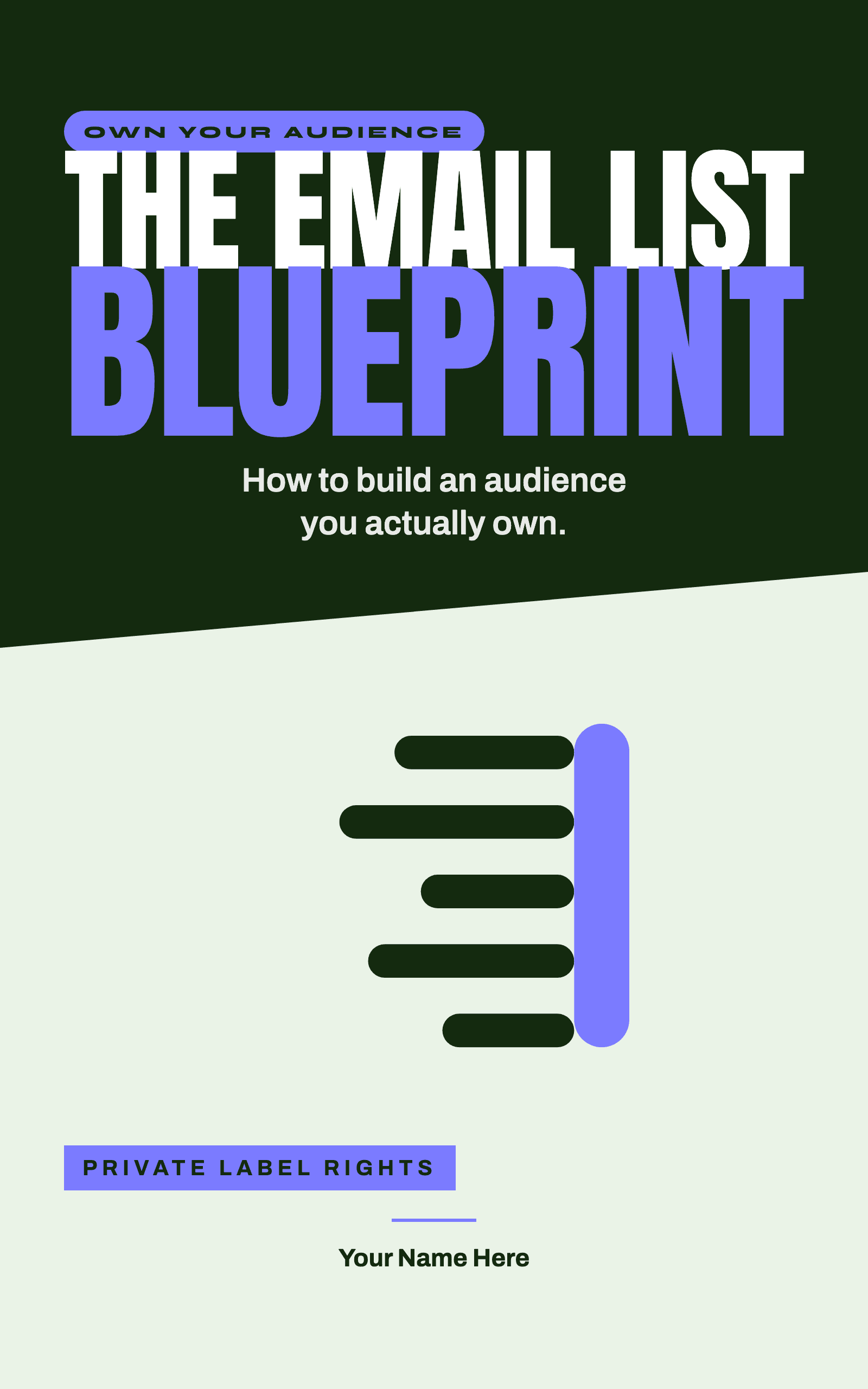
The Email List Blueprint
How To Build An Audience You Actually Own
$14.99View details
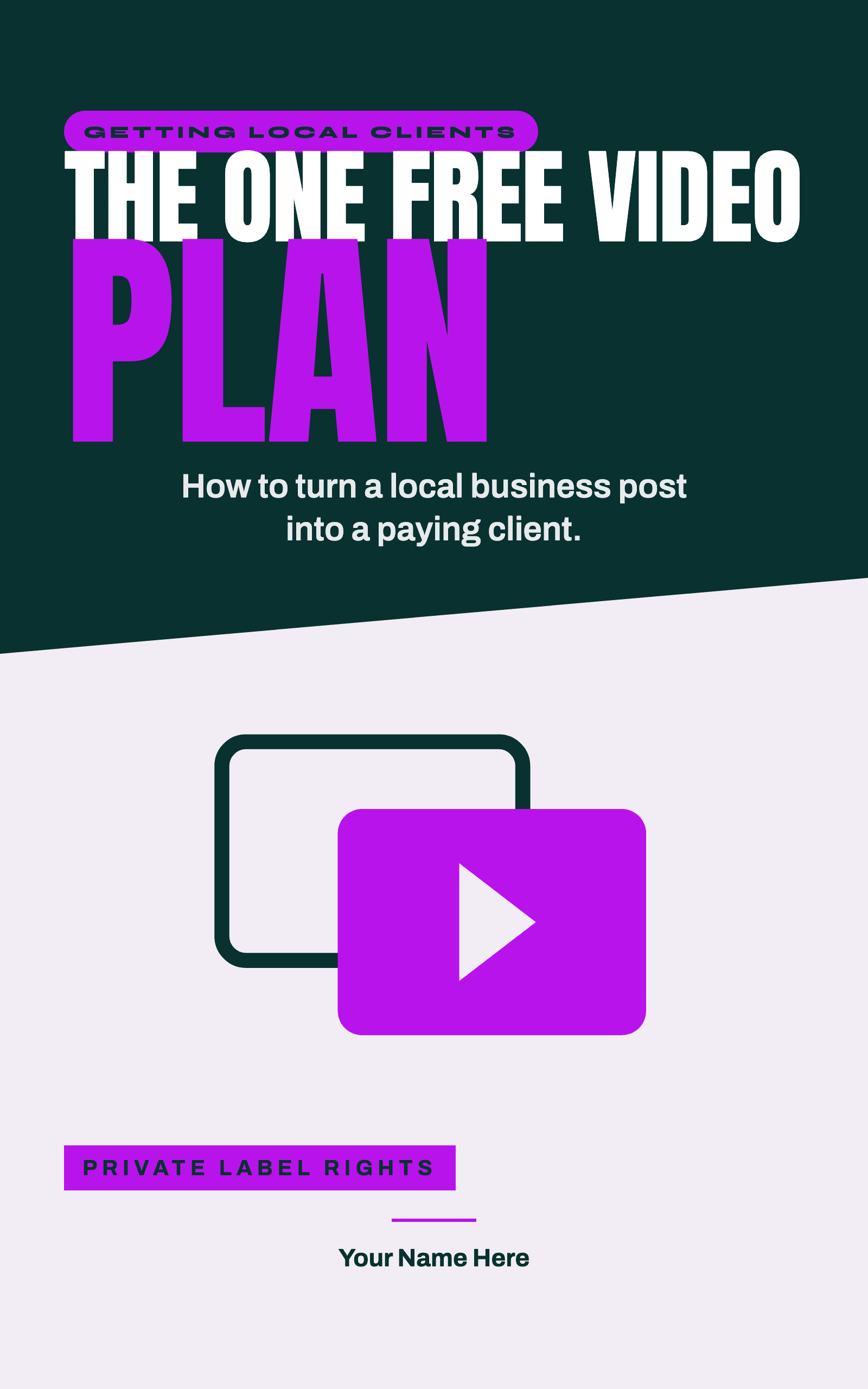
The One Free Video Plan
How To Turn A Local Business Post Into A Paying Client
$12.99View details
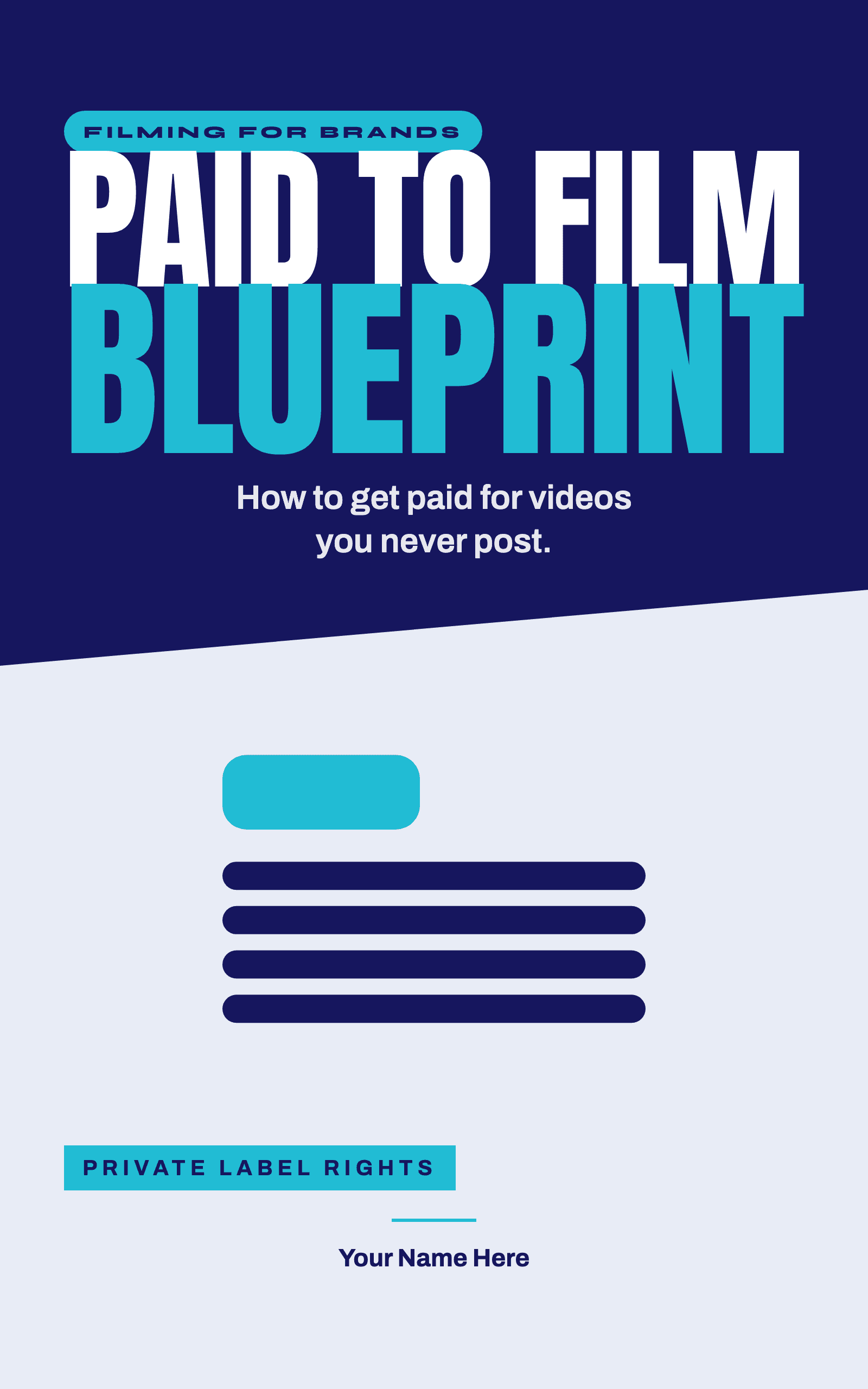
The Paid To Film Blueprint
How To Get Paid For Videos You Never Post
$15.99View details
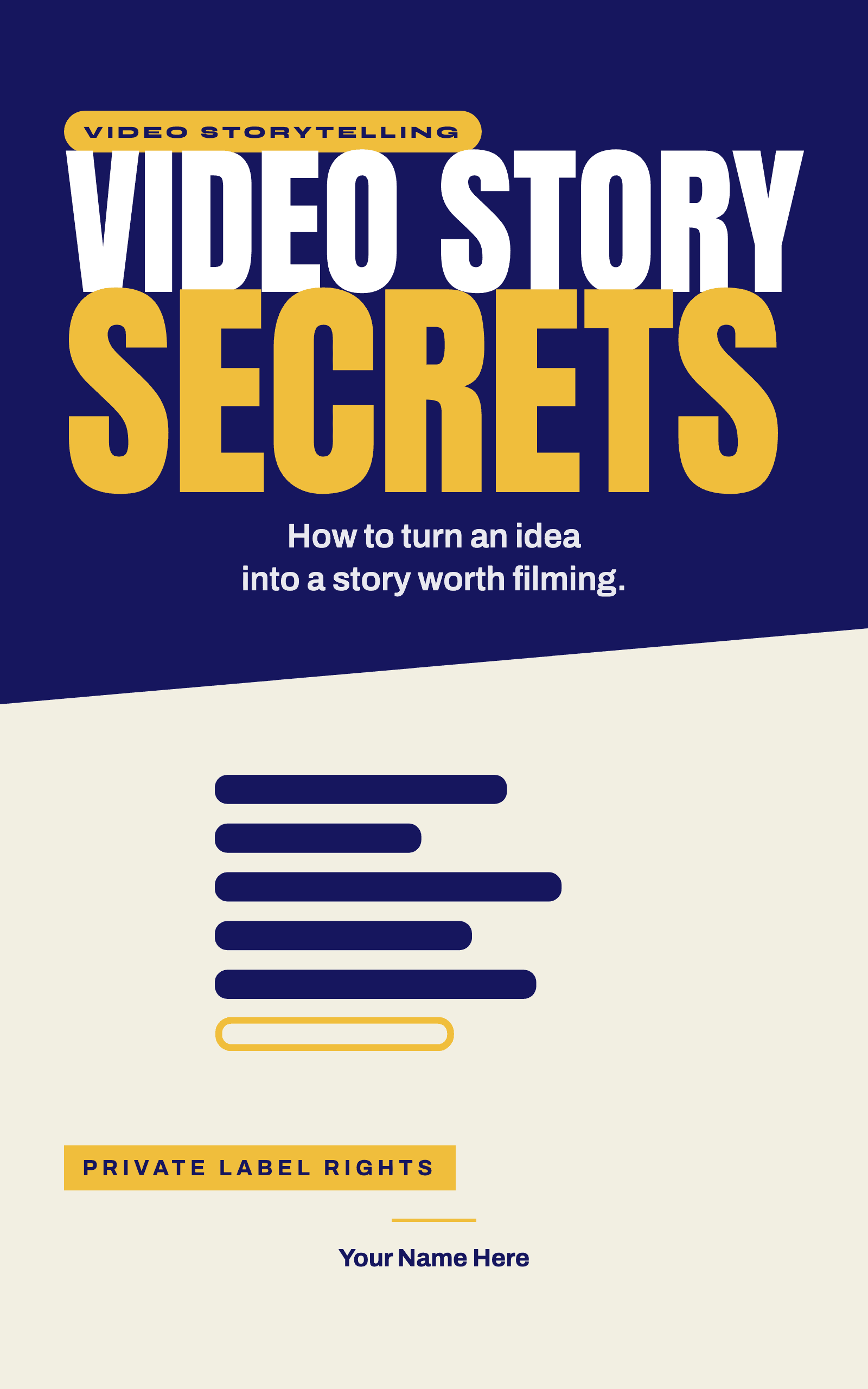
Video Story Secrets
How To Turn An Idea Into A Story Worth Filming
$12.99View details
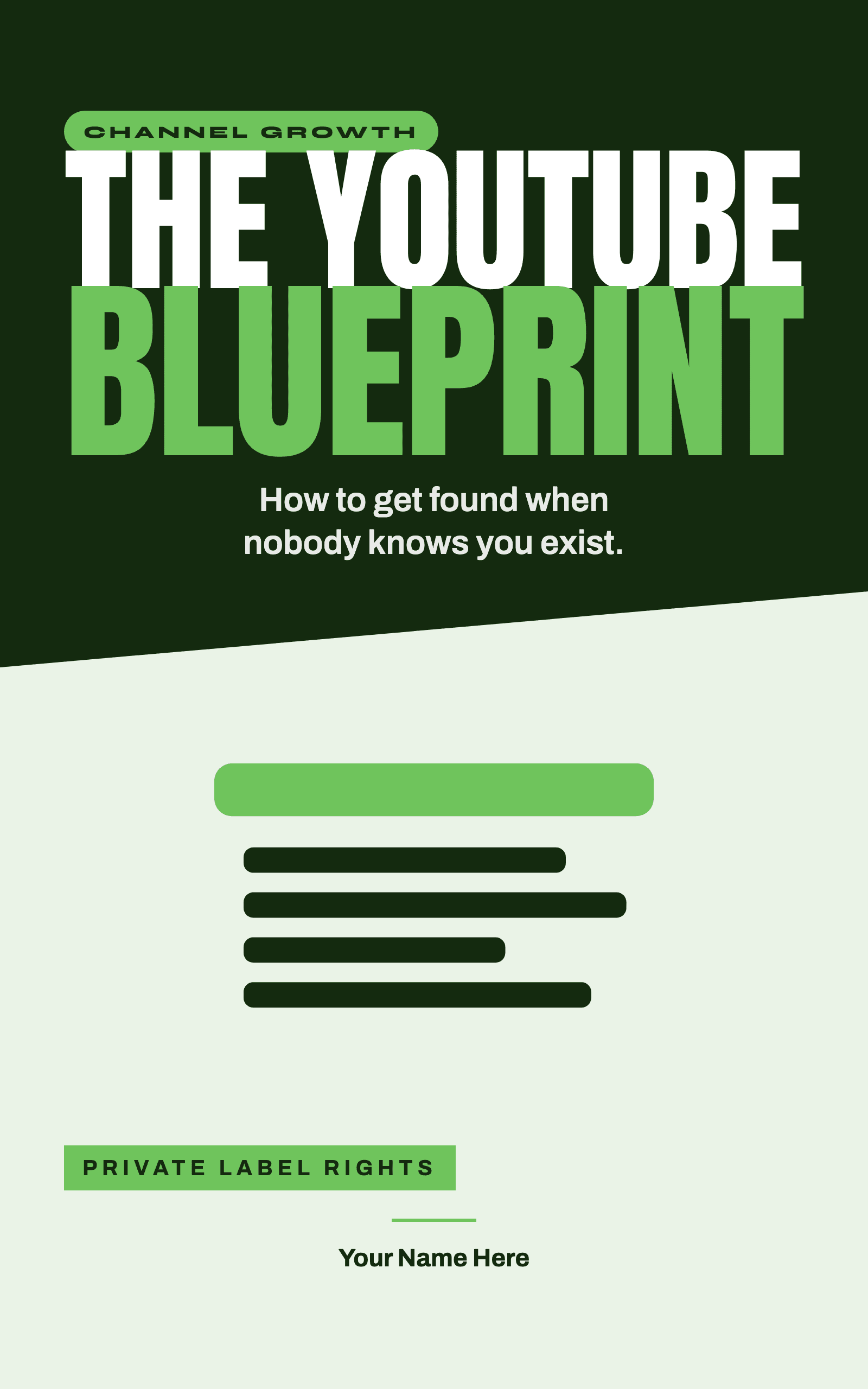
The YouTube Blueprint
How To Get Found When Nobody Knows You Exist
$13.99View details
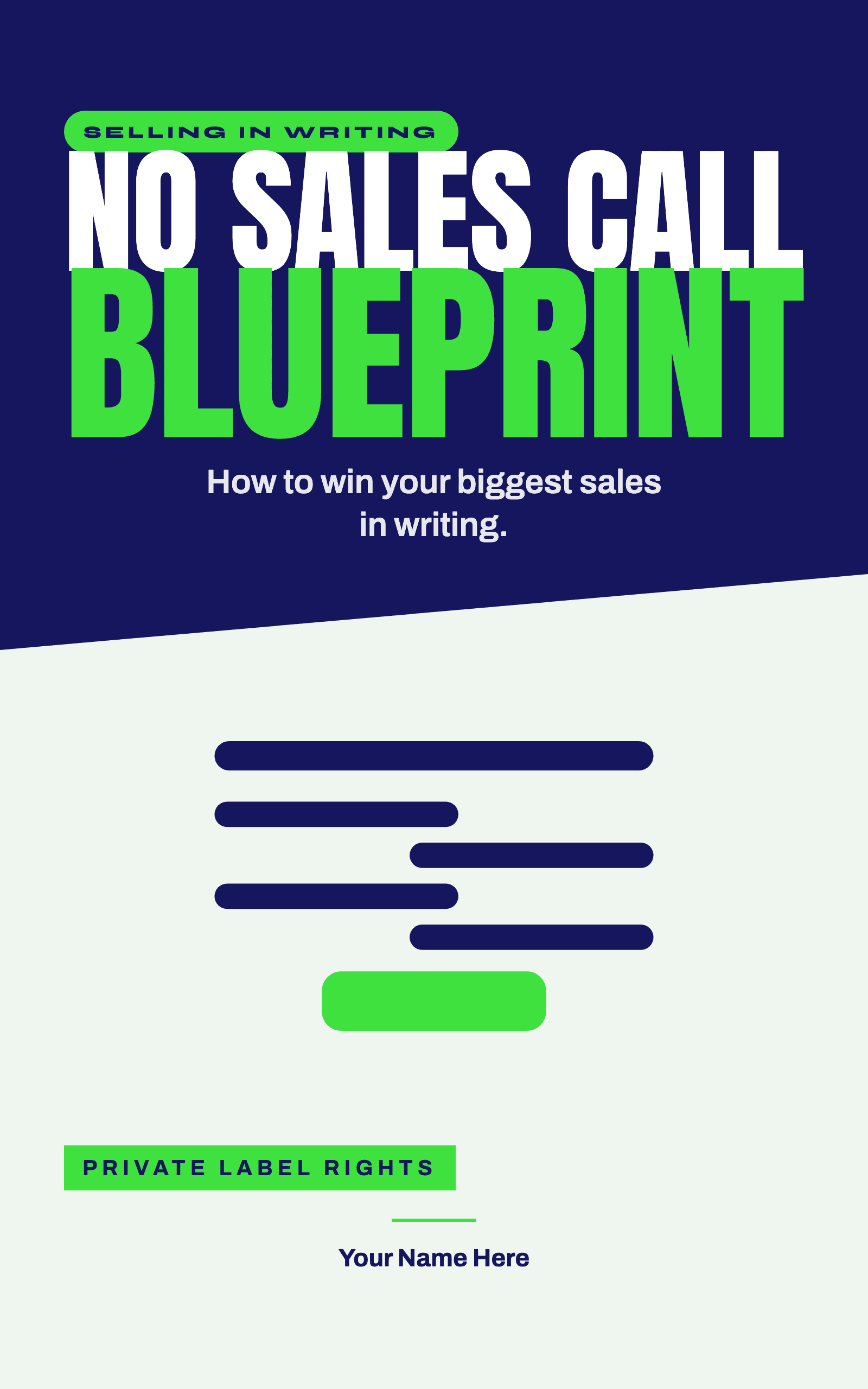
No Sales Call Blueprint
How To Win Your Biggest Sales In Writing
$14.99View details
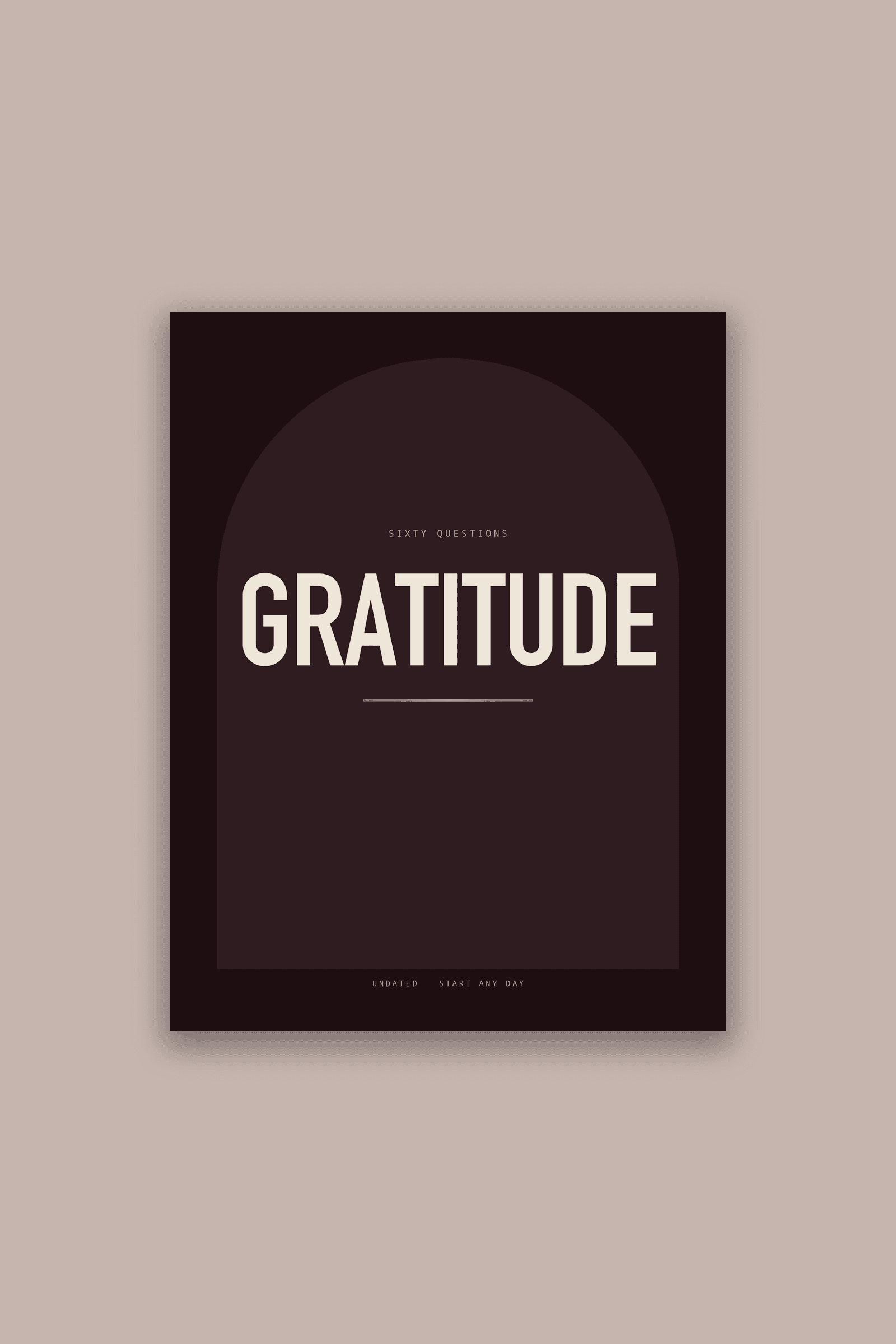
Gratitude Journal For Men
A Page For What Went Right, And A Page That Asks Why
$12.99View details
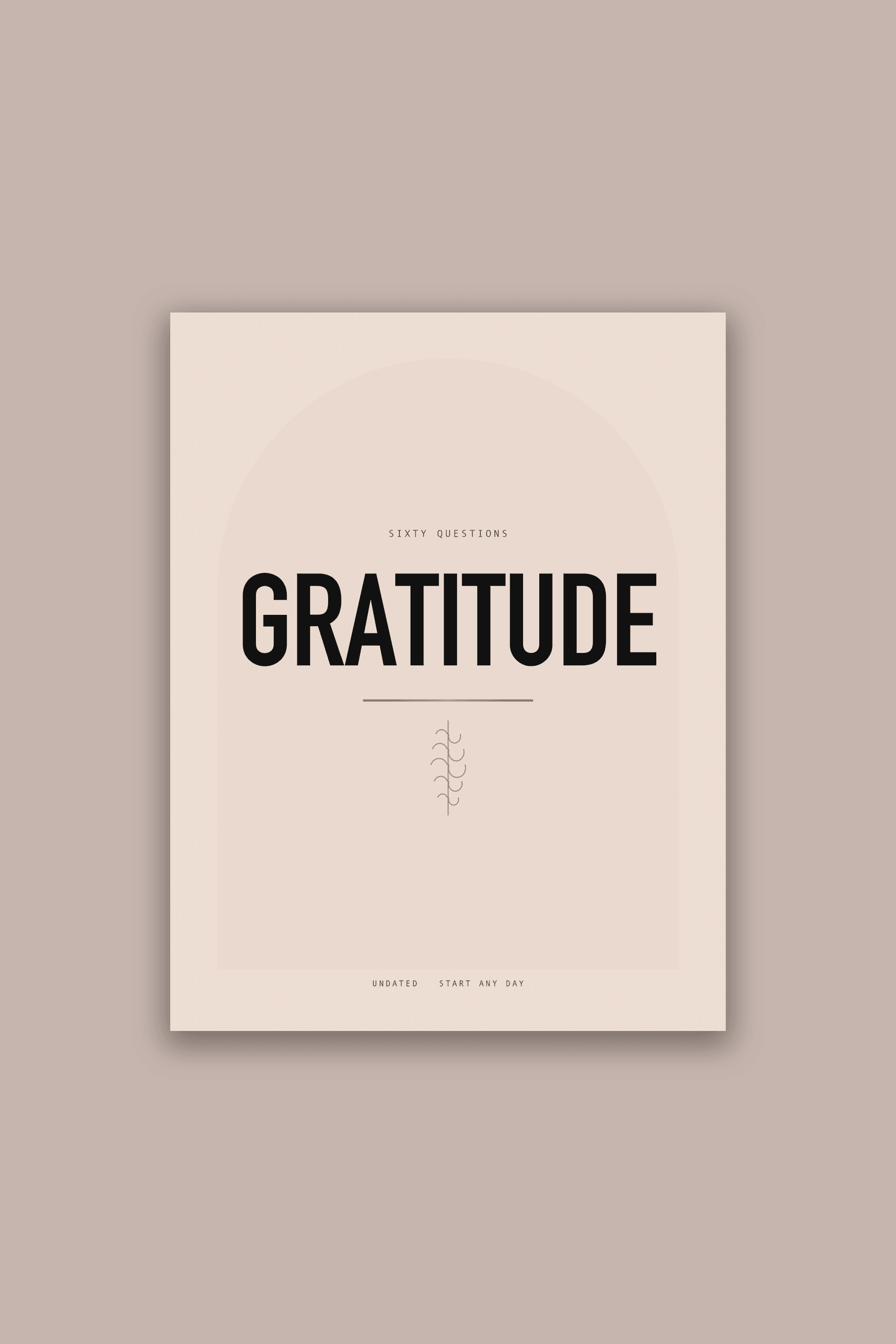
Gratitude Journal For Women
A Page For What Went Right, And A Page That Asks Why
$12.99View details
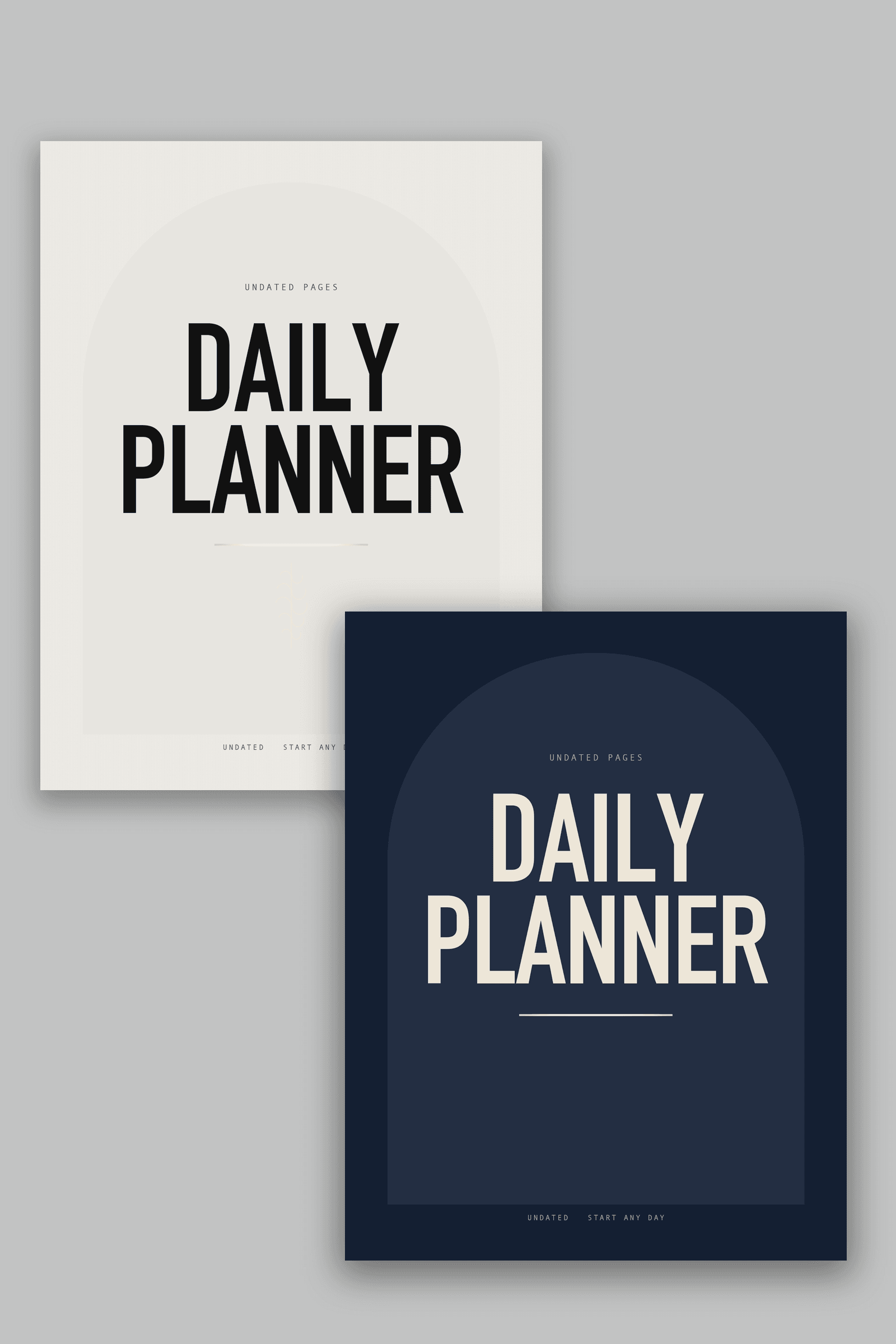
Daily Planner
One Day To A Page, Morning To Evening
$12.99View details
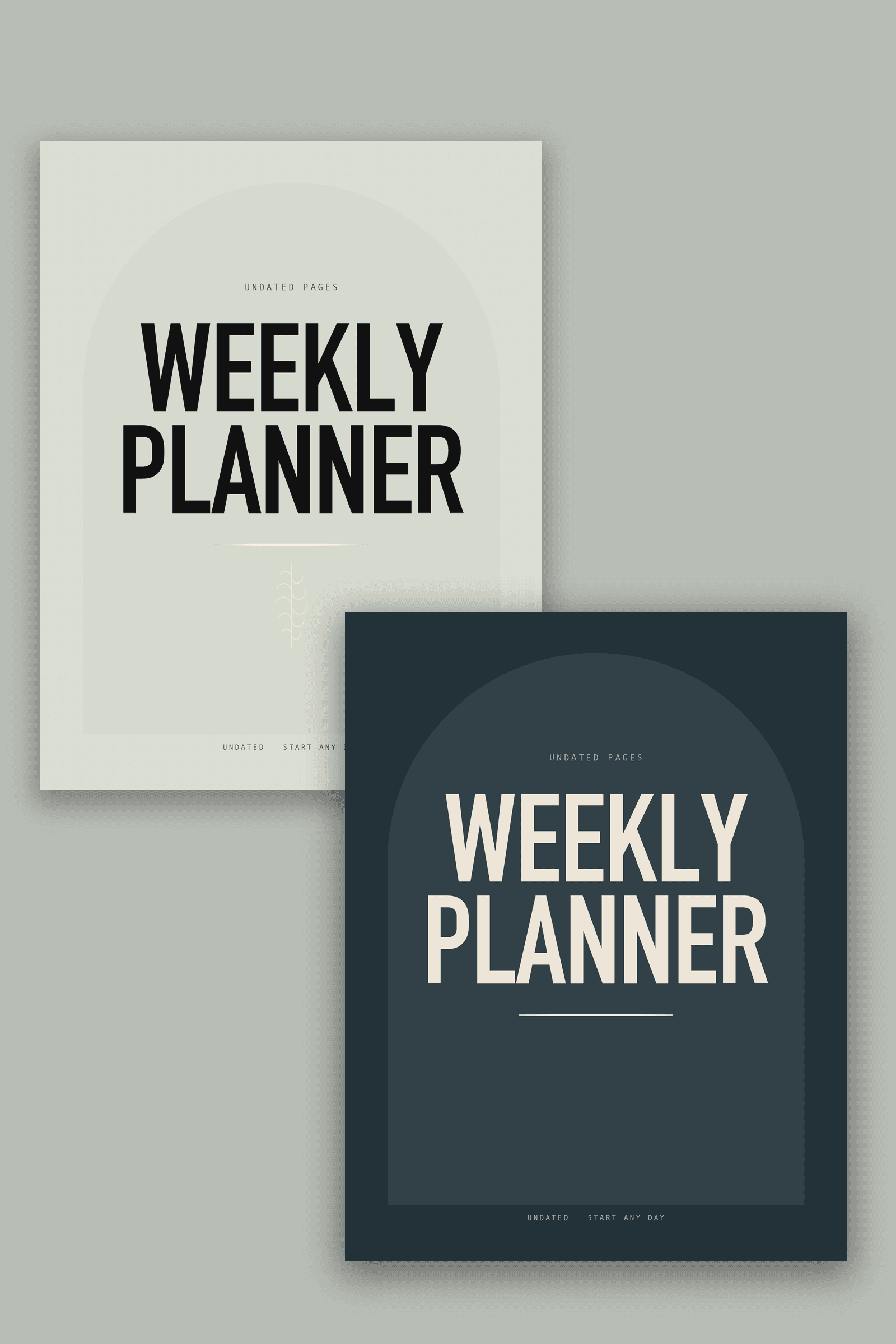
Weekly Planner
One Week To A Page, Undated
$12.99View details
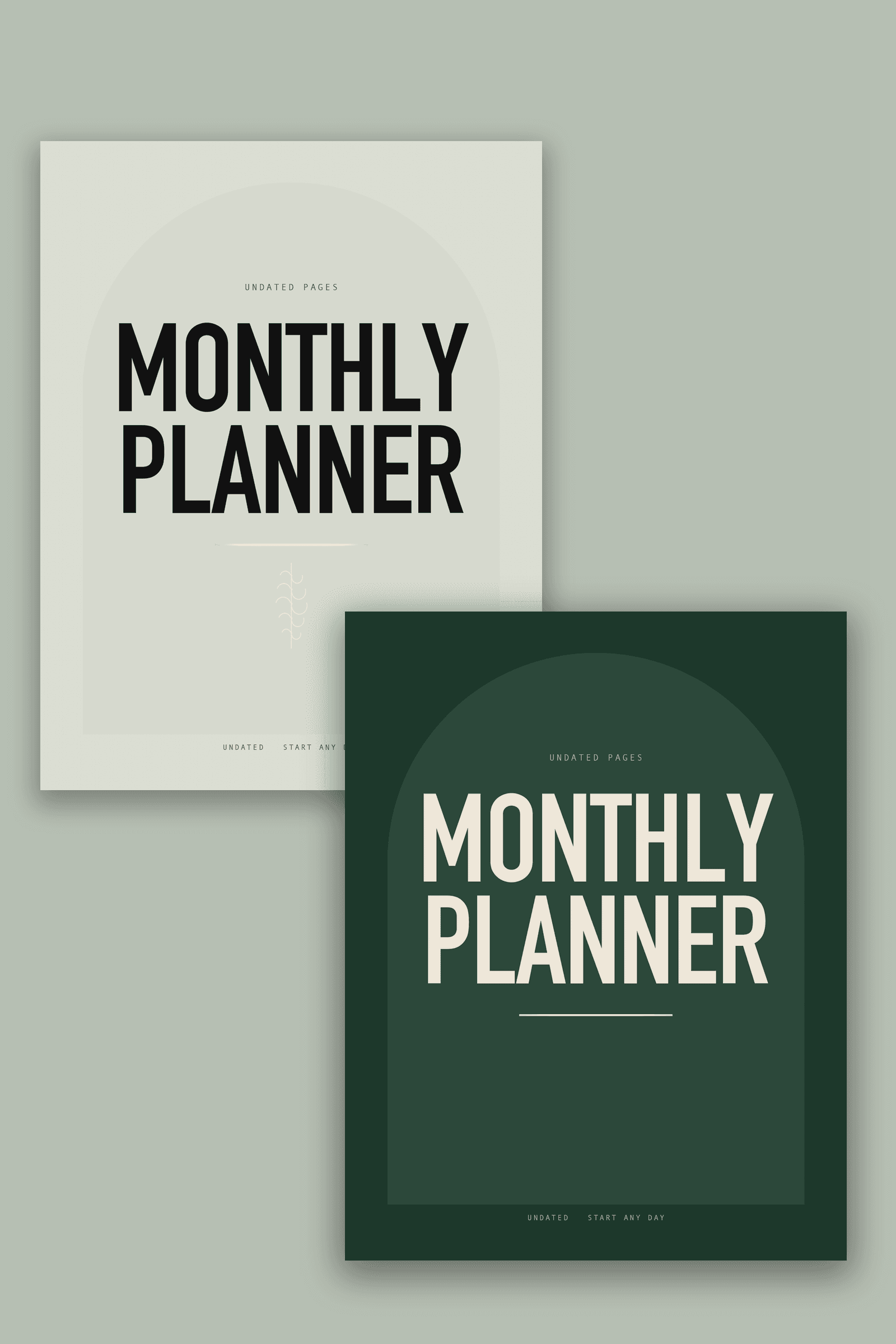
Monthly Planner
One Month To A Page, Undated
$12.99View details

Habit Tracker
Write The Habit, Tick The Box
$12.99View details

Monthly Budget
What Came In, What Went Out, What Is Left
$12.99View details
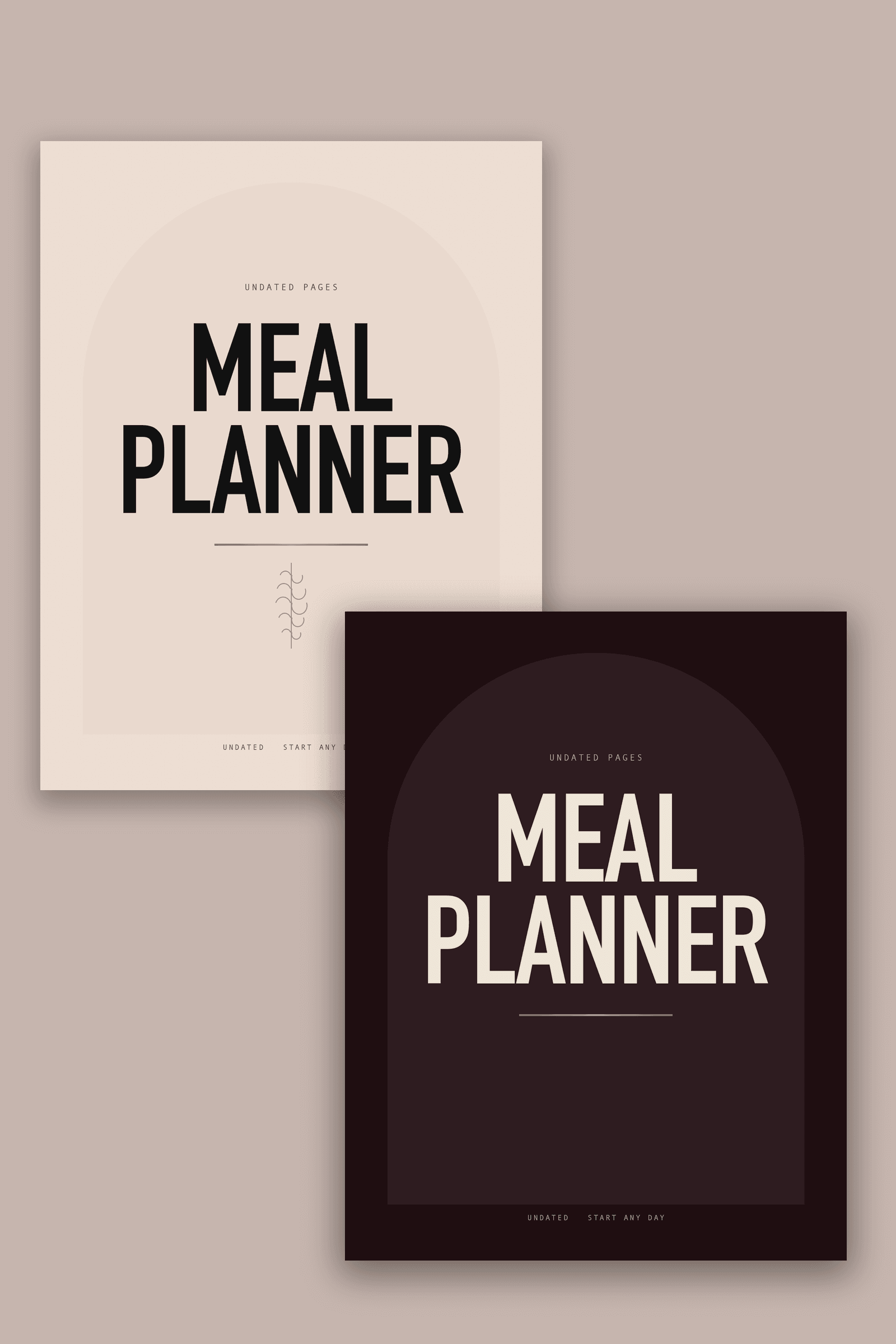
Meal Planner
A Week Of Meals And The Shopping List To Match
$12.99View details
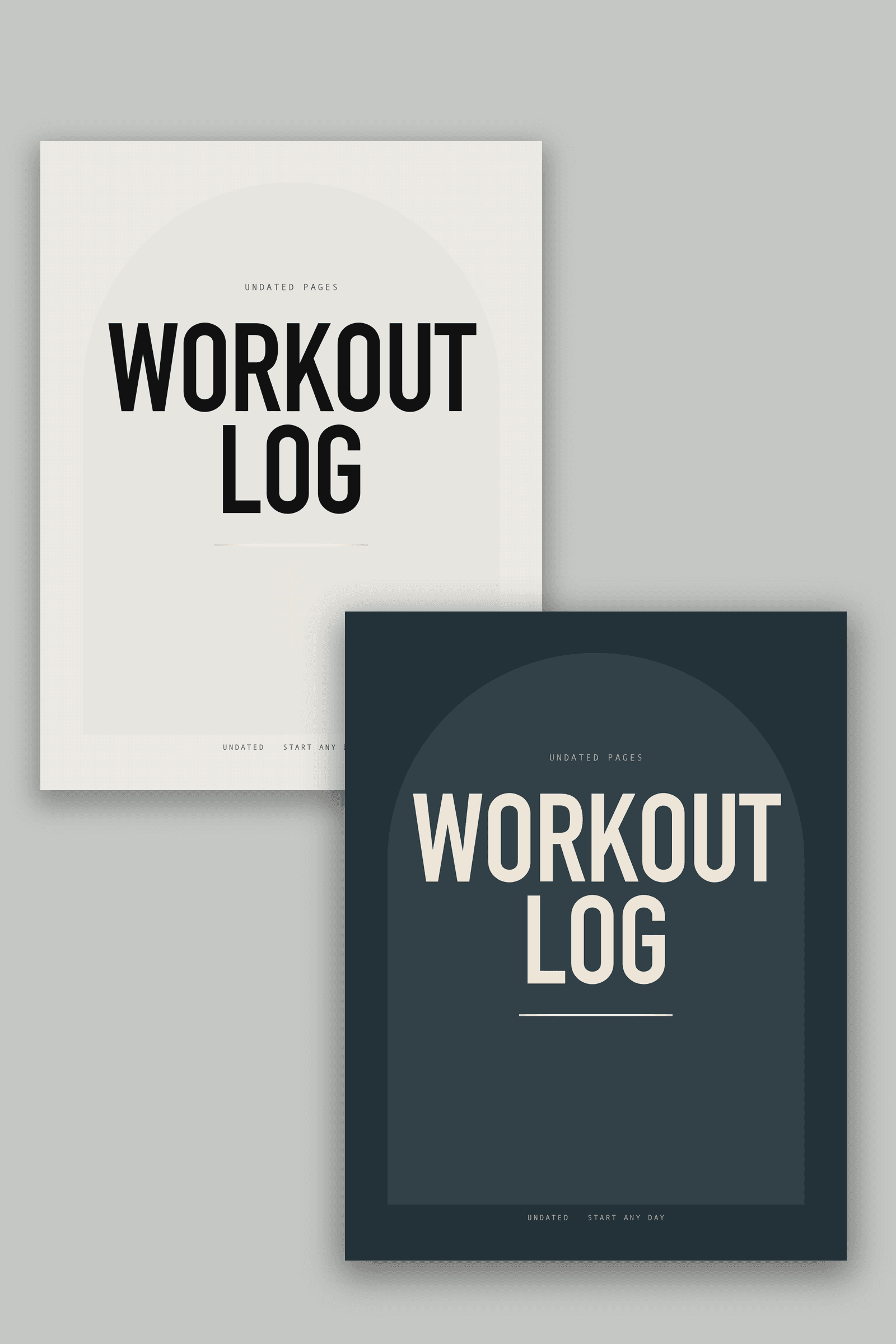
Workout Log
Sets, Reps And Weight, Written Down
$12.99View details
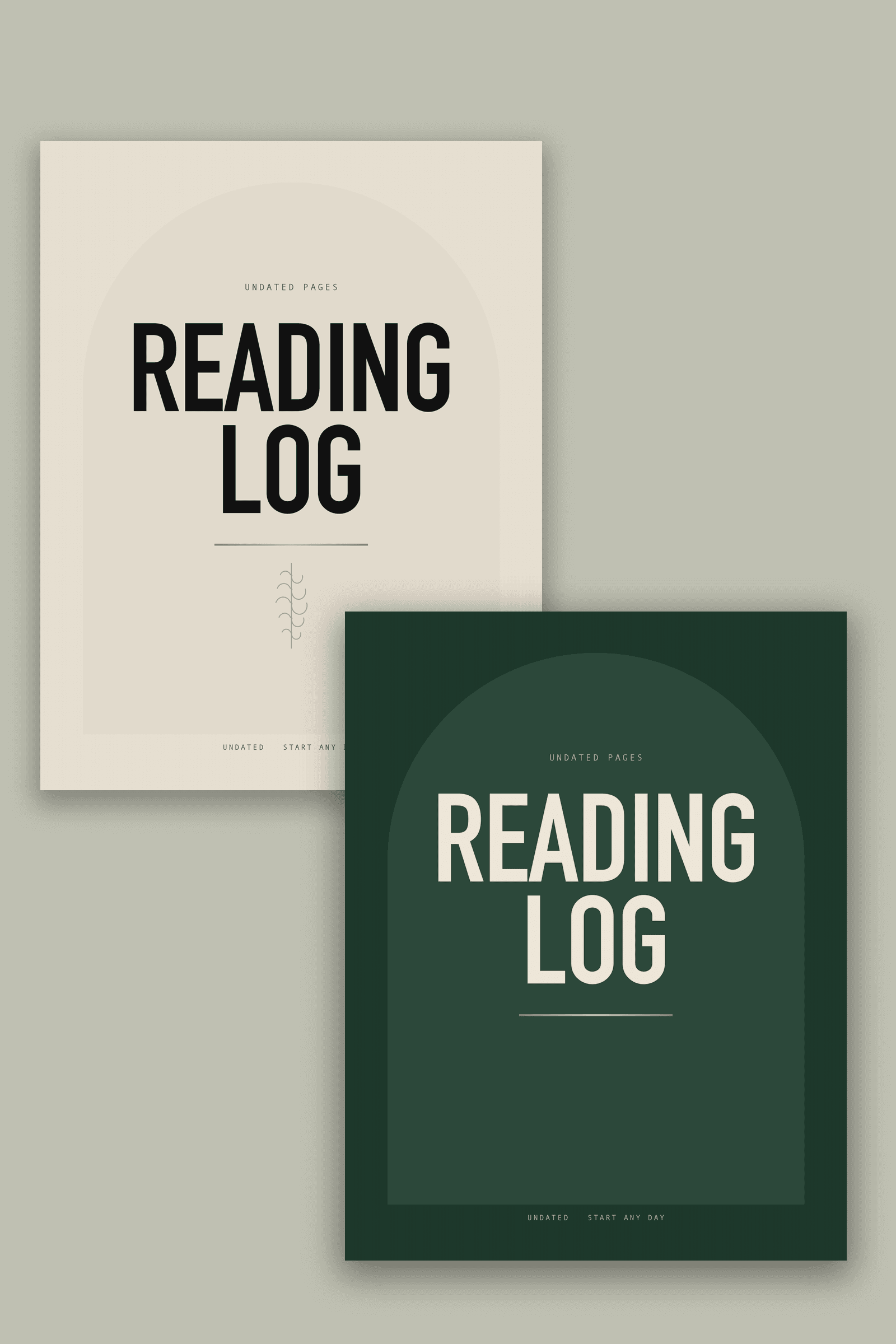
Reading Log
Every Book You Finish, And What You Thought Of It
$12.99View details
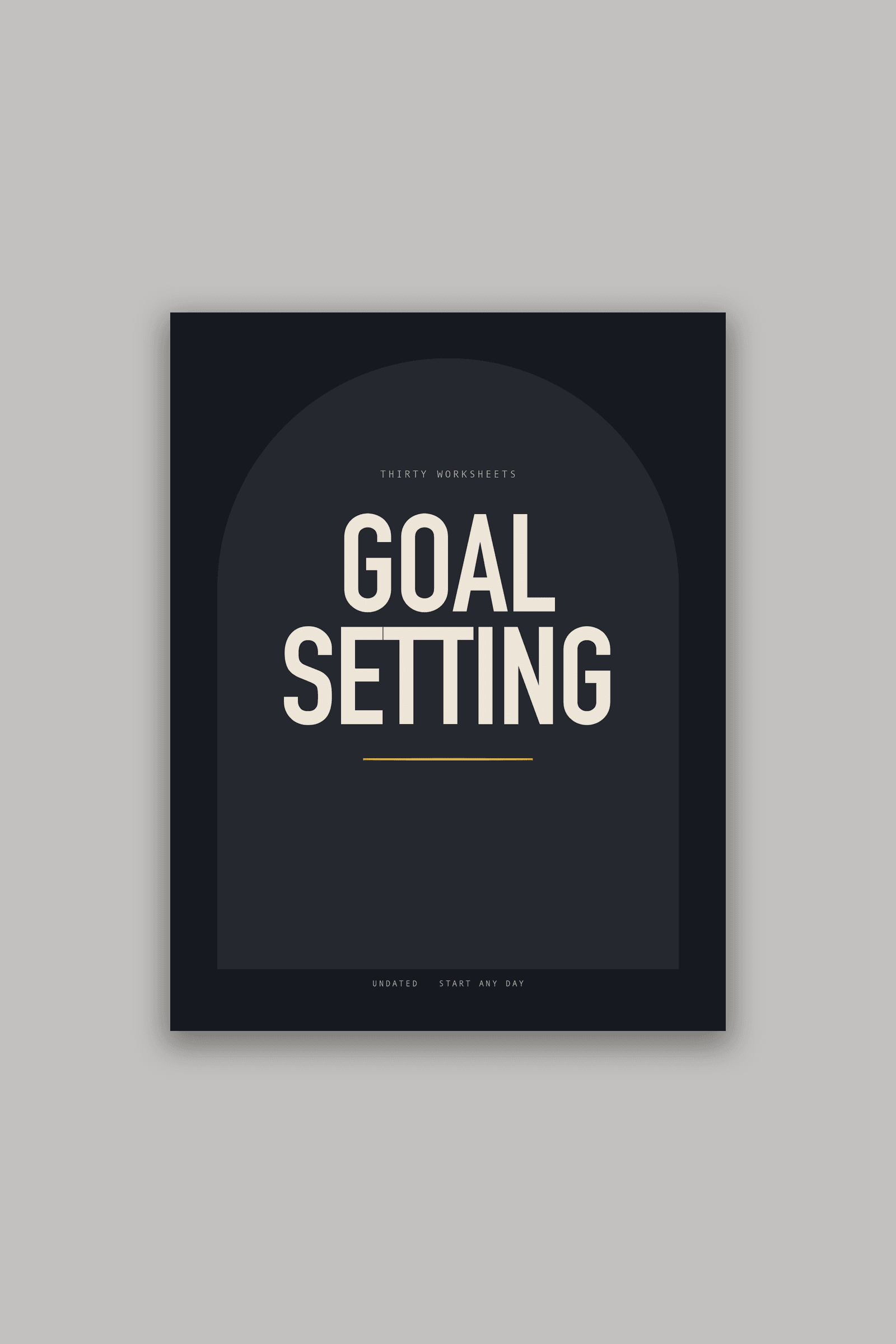
Goal Setting Workbook For Men
A Worksheet, Then A Page That Argues With It
$12.99View details
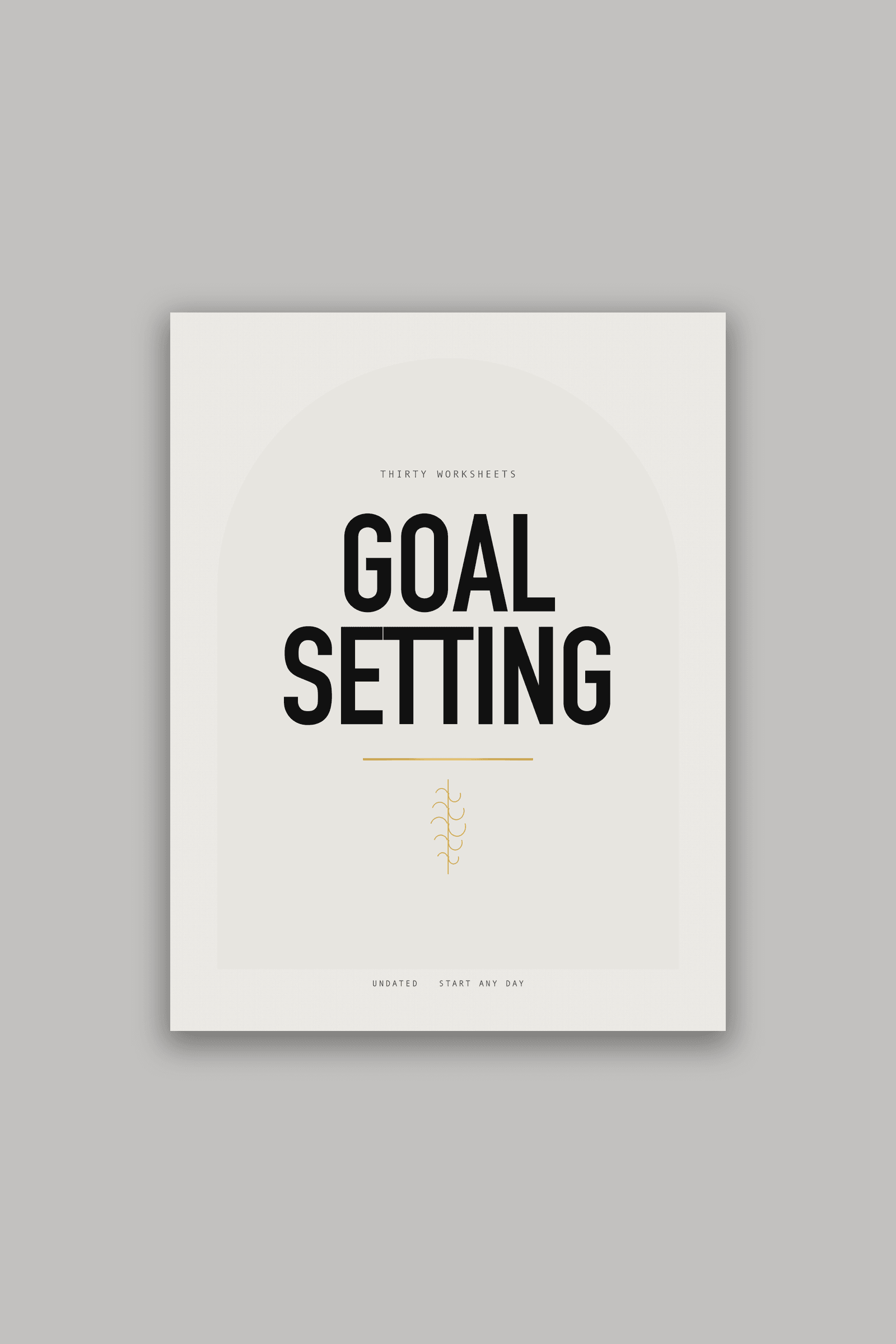
Goal Setting Workbook For Women
A Worksheet, Then A Page That Argues With It
$12.99View details
Mindset Journal
Sixty Questions For The Work Nobody Sees
$12.99View details
Becoming Journal
Sixty Questions For The Woman You Are Building
$12.99View details
Get Seen
7 Books On Growing A Page People Actually Follow
$27$95.93View details
Run Ads
5 Books On Spending Money On Ads Without Wasting It
$27$70.95View details
Get Paid
8 Books On Turning What You Make Into Money
$27$119.92View details
Natural Remedies
7 Books You Can Sell As Your Own
$27$92.93View details
Build An Email List
3 Books On An Audience You Actually Own
$27$44.97View details
Seven Day Plans
3 Books People Finish In A Week
$27$44.97View details
All 14 Journals
Gratitude, Planners, Trackers And Mindset
$27$181.86View details
Everything
All 48 Books And Journals
$47$667.52View details
What you are buying
Not a copy of the book.
The right to be its author.
A normal ebook purchase gives you a reader's copy. Private Label Rights give you the premade ebook as a file you can edit, plus the legal right to publish it under your own name as if you had written it.
That is the whole difference. The words are already written, edited and laid out. What you add is the name on the cover, the voice, and the audience you sell it to.
It is the same arrangement ghostwritten business books have run on for decades. The only thing that changed is the price of entry.
Start here
Here's How It Works
You do not need to know anything about publishing to use this store. The rest of this page tells you what you are buying, what shows up when you pay, and what you are allowed to do with it. About four minutes to read.
Before you spend anything
There is a free guide, and it is the right thing to read first.
Where it is. At the very top of this page, in the band above the headline. It is called The Borrowed Product Blueprint and the button on it says get the free PDF.
How to use it. Tap the button. It opens one short page with a box for your email address. Put it in and the PDF downloads straight away. There is no account to make and no card to enter.
What it does. Five pages. It lays out the five legal ways to earn from something somebody else already wrote, side by side, and is honest about what each one costs you in time, money and control. The last page is a checklist for telling a good rebrandable book from a bad one before you pay for it, which is worth having whether you buy here or anywhere else.
Reading it is not a step you have to take. Every book on this page works the same whether you read the free guide or not. It is here because most people stall on picking an approach, not on finding a book, and five pages is cheaper than finding that out later.
What is on the shelves
Not everything here is a book.
There are four tabs at the top of the page. They sell different things under different rules, and only one of them lets you resell what you bought. Here is which is which.
Finished books you put your own name on and sell. You keep the money. Everything else on this page is about this shelf.
Journals and planners, already drawn and already sized for print. Same deal as the books: your name on the cover, your price, you keep the money. Most of them are blank inside. The rest print a reflection question on the page and leave the writing to whoever buys it.
These are for you to read and use. You do not resell these. Buying one does not let you sell it on.
Step by step instructions you load into an AI assistant so it does one job properly. Some are free. Most cost less than lunch.
Prompt packs for making short brand videos and photos. Same idea as the skills, pointed at content.
You do not have to go back to a tab every time. Scroll to the bottom of any product page and you will find four more products like the one you are reading about, with a link to the full shelf under them. Books show you other books you can rebrand and sell. Skills show you other skills.
On a busy product page you will sometimes see a green dot and a line saying how many people are looking at that page right now. It sits just under the buy button. That number is real. It counts browsers with that exact page open at that moment, it stops counting you the second you switch tabs, and it is hidden entirely when fewer than three people are there, so a quiet page stays quiet. Plenty of stores show you invented names buying invented orders on a loop. This one will only ever show you something that is actually happening, which means when it is blank, nothing is being hidden from you.
Bobby, the advisor on the chat button in the corner, remembers your conversation. That memory is kept in your own browser rather than on our servers, so you can close the tab, come back tomorrow and carry on where you stopped. We do not keep a copy, nobody here reads it back afterwards, and clearing your browser data clears it for good. The flip side is worth knowing: if you tell Bobby something you actually want a person to act on, send it to support as well, or it stays in your browser and reaches nobody.
There is one more tab, and nothing in it is for sale yet. The Courses tab is where the video training will live. It is being made right now, so every card in there says coming soon and none of them takes your money. Put your email on the one you want and you get told the day it opens. Courses are not part of Lifetime either way, so nothing you buy today is waiting on them.
The one thing worth getting straight before you spend anything. Two shelves come with the right to sell what you buy: PLR Ebooks and Journals & Planners. Nothing else on the site does. If you want to resell what you buy, buy from one of those two.
New shelf
14 books somebody else finishes writing.
Everything else on this page is sold on what is written in it. These are sold on what is left for the owner to write. 8 are planners and trackers with blank pages inside. The other 6 print a reflection question on the page and leave the rest of it empty. All of them are already drawn and already measured, and you sell them printed rather than as a download.
Where they are
On this page, in the titles above. The row of subject buttons has a Journals & Planners button at the end of it. Press that and the shelf shows these 14 and nothing else.
What you get
The inside of the book as one PDF, 64 pages at 8.5 by 11 inches. The cover, built to the exact width a 64 page spine needs. And a guide that walks you from a free account to a live listing in twelve steps. The 8 blank titles carry two covers, a men's and a women's, over the same inside pages, so one purchase is two listings. The other 6 carry one cover each, because the questions printed inside them are written for one reader and the men's and the women's are genuinely different books.
How to use them
Open a free account at Amazon's print on demand service, put your own name where it asks for the author, upload the two files and set your price. Amazon prints each copy when somebody orders it, so you never buy stock. About twenty minutes. The guide in the zip names every setting.
Two things to know before you buy one, because they are the two questions that come back. There is no manuscript and no editable design file. On the blank titles there is nothing to rewrite, and on the ones with questions the question is printed into the page, so putting your own wording there means rebuilding the page. And the cover only fits a book of exactly 64 pages, so change the inside all you like, but keep the page count or rebuild the cover to match it. Both are said again in the licence and in the guide.
One price for all of it
Or take the whole shelf once and stop buying.
You can buy anything here one at a time. You can also buy the site. Lifetime is one payment of $997 and it covers the skills, the prompt packs and the downloads, including the ones we have not made yet. Courses are the exception and are sold on their own. There is no monthly fee after it and nothing to cancel.
What it covers
- All 86 skills in the catalog.
- All 23 UGC prompt packs.
- All 64 downloads on the products and PLR shelves, the 34 books you may resell included.
- Anything of those three kinds we add later. You do not ask for it and you do not pay again. It shows up.
- Courses are not in it, and none of them is finished yet. They are being made now, they will be sold on their own, and the Courses tab shows you what is coming.
Where to find it after you pay
Everything lands in your dashboard. The books and packs sit under your downloads with the words Included with Lifetime next to them instead of a purchase date, because you did not buy them one by one. Skills download the same way they do for anyone else, and each PLR book still builds your licence in your own name when you download it.
When something new goes on the shelf, open the dashboard and it is already there.
Worth knowing before you choose. The Full Agent Vault bundle is cheaper and it is a different thing: the skills that are on the shelf today, and updates to those. Future skills, the books, the packs are what Lifetime adds. The full list is on the Lifetime page.
What shows up when you pay
One zip file, and your licence next to it.
The download link appears the second you pay, and it also goes to your email. Inside the zip is everything below.
1
The finished book
A PDF that is done. Nothing missing, nothing half written. You could sell it today without touching a word.
2
The same book as a Word file
This is the one you edit. Open it in Word, Google Docs or LibreOffice, change whatever you want, and save it back out as a PDF.
3
The same book again as plain text
Useful when you want to paste a chapter somewhere else, like into an email or a course lesson, without any formatting following it.
4
Three covers, already made
Three different looks for the same book, plus the files to change the words on them. There is a short readme in the cover folder that walks you through it.
5
A picture of the book
The book shown as an object, the way it would look sitting on a shelf. That is the picture you put in your ads and on your sales page.
6
A sales kit
The sales page, five emails, ten short social posts and three ad angles. All of it written for this book, so you are not starting from a blank screen.
7
A quick start
One page that tells you what to change first and what to leave alone. Read this one before anything else.
8
Your licence, in your name
This one is not inside the zip, on purpose. It is built for you when you buy, with your name, a licence number and the date on it. A certificate made out to nobody would be worth nothing as proof.
Read it before you buy it
Real pages,
not a promise about them.
Where to find it. Open a book on either shelf, ours or one of the ones you can resell, and scroll down its page. You will see four pictures of pages under the heading about looking inside the book.
What they are. Real pages out of the finished PDF, picked by reading the book first. Never the cover, and never the legal pages at the front, because those tell you nothing about whether the writing is any good. On our own books the four pages show you how the book works: the steps, the calendar, the part you actually do. The prompts themselves stay inside, because those are the thing you are buying.
How to read them. Click any one of the four. The page opens full size on top of everything else, big enough to read every word. Use the arrows on either side to move through all four without closing it, and the X in the corner, the Escape key, or a click on the dark background to go back to the page you were on.
Why it is there. So you can judge the writing yourself instead of trusting a sales page about it. If the pages read well, the book reads well.
Every one of the 74 things on sale here has these pages. All 34 of the books you can resell, and all 26 of the ones we wrote ourselves. You never have to buy anything here blind.
New: the suggested resale price
Simple math,
and not one word more.
Where to find it. Just under the pages from the book, on the same product page. It is the dark panel with two numbers in it.
What it says. A price we think the book is worth to your buyer, and then the multiplication done for you at fifty copies. Nothing clever. You could do it on your phone.
What it is not. It is not a promise, a guarantee, or a hint about what you will make. We have no way of knowing what you will sell, and anybody in this business who tells you otherwise is guessing at you. It is there so you can see the size of the thing you are buying for about the price of lunch.
You set your own price. If you charge more, the math is bigger. If you charge less, it is smaller. That part is yours.
New: the coloring book editor
Twenty pictures in,
one book out.
Where to find it. It is a page on this site at the coloring book editor, and it is in the header at the top of every page under Coloring Book Editor. If you have already paid, sign in with the same email you paid with and it opens. If you bought as a guest, sign up with that same email and your purchase links itself to the account. There is nothing to download and nothing to install.
What it costs. There are three ways in. First, a monthly plan, coming soon, from $19 up to $65 a month, or $600 for a year of the top one. The $19 plan is for making pages for yourself, your family or your classroom; the ones above it license you to use the maker in a business that sells what it makes, with no cap and no share taken. Second, the coloring book, coming soon, includes 30 days of the maker, counted from the day you buy the book. Third, it is included forever if you own the whole shelf. Whichever way you come in, the pictures and the finished book are yours. We rent you the tool, we take no piece of your work. Today the whole shelf is the one way in.
How to use it. Drag your pictures onto the page, all of them at once. Pick your page size, say whether you are making a bound book or loose pages to sell one at a time, then press one of the two buttons at the bottom. One button gives you a single file with every page in order, which is what a printer wants. The other gives you a zip with each page on its own, which is what you want if you are selling pages singly. Your pictures start off in order by filename, so if you name them page-01, page-02 and so on they land in the right order by themselves. If they do not, the preview screen below lets you drag them into the order you want.
If you make your pictures in Canva, change one thing before you download. Canva builds its pages at the size a screen needs, not the size a printer needs, so the file you get from pressing Download without changing anything is too small and the maker will turn it away. It is not your drawing that is wrong, only the download. Click Share, then Download, choose PNG, and type the size in: 2550 by 3300 for an 8.5 by 11 page. Leave every other setting alone. If you forget, the maker now recognises exactly this and tells you the numbers to type, so you never have to remember them.
A PDF works too, and it comes apart by itself. The same drop zone takes a PDF, and so does the Choose your files button inside it. Drop one in and you get one page in your book for every page inside the file, so a twelve page PDF gives you twelve pages. From that moment they are pages like any other: drag them into a new order, put your own words on them, turn page numbers on, look at any one of them the way it will print, and the maker still holds back any page that is too small to print sharply. Drop PDFs and pictures together in the same go if you like. Each page is named after the file it came out of, with its page number on the end, so the order stays right. If a file will not open, the maker tells you which one by name and everything else you dropped still goes in.
Both kinds of file, without asking. The zip holds every page twice: once as a print ready file for a printer, and once as a picture file. Some shops ask for one and some ask for the other, so you get both and you never have to go back and make the set again. There is a tick box under the button if you ever want to turn the picture files off.
Let a picture run right off the edge. Under the page size there are now three buttons for how a picture sits on the page. Keep all of it shrinks the picture until the whole thing fits inside the margin, which is the safe one and the one it starts on. Fill the space crops the outer edges off the picture so it fills the margin with no white bands inside it. Run off the edge is the new one: it ignores the margin altogether and covers the whole page, edge to edge, which is what you want for a full page background or a cover style page inside the book.
And the slider that goes with it. Below those buttons is a slider called Extra paper past the edge. A printer cuts a whole stack of pages at once and the blade wanders a little, so a page whose drawing stops exactly on the cut line comes back with a thin white sliver down one edge on some copies and not others. The slider prints a bit extra all the way round and the blade lands inside it. An eighth of an inch is the usual amount, and you should check with whoever is printing it, because every shop asks for its own. The two settings work together: the slider only does something if the picture actually reaches the edge, and the words under it always tell you exactly what the pair you have picked is doing, including when the answer is nothing at all. Leave both alone for an ordinary coloring book. Nothing changes and nothing is wasted.
What comes out when you turn it on. The print ready file is the bigger sheet with the extra still on it, and the cut line is written inside the file so whoever prints it knows where to trim. The picture files are the other way round: they come out already cut to the finished size, because a picture file has no way of saying where the cut goes, and handing a customer an oversized page with the drawing running off it would just look like a mistake. The tool tells you both sizes in plain numbers when it finishes.
Put a blank page behind every picture. Pick A bound book and a checkbox appears under the bound edge slider. Turn it on and the tool drops an empty page in behind each of your pictures. There are three reasons to want that. Crayon and marker soak through cheap paper, so a picture printed on the back of another one gets ruined from the other side. A page torn out to color has a clean back instead of half a drawing. And it doubles how many sheets the book has, which is the only way a thin book gets a spine thick enough to read when it is sitting on a shelf with the cover facing away from you.
What it changes, and the one number to check. Twenty pictures become a forty page file. The page numbers still count your pictures the way a reader counts them, one, two, three, not the sheets. A print shop counts the sheets, so the number it wants is the bigger one, and the tool prints both numbers for you when it finishes so you can check whatever yours asks for. One other thing moves on its own: with a blank behind every picture, every picture lands on a right hand page, so the extra space for the binding sits on the left of all of them instead of swapping sides. The preview shows that. The separate pages button never gets blanks, on purpose, because a page somebody prints at home has no back to protect.
Make the cover. At the bottom of the Get your files box there is a button that says Make the cover. A paperback cover is not three files. It is one flat picture: the back, the spine and the front sitting side by side, as if you opened the book right out and pressed it face down on a table. The front goes on the right. Get that backwards and the book prints inside out. This screen lays it out for you in the right order and shows it to you opened flat, so you can see what you are sending before you send it.
The number nobody can work out on their own. The thing that makes covers hard is the spine. How wide it has to be depends on how many pages are in the book and how thick one page is, and if you guess it wrong the whole cover is the wrong size and the title ends up wrapped round onto the front. The screen works it out and shows you the finished flat size in inches before you pick a single picture. It already knows your page count, because it carries it over from your book, and it counts the printed pages, not your pictures, so a book with a blank behind every picture gets the thicker spine it actually needs. You can type a different number in if you are covering a book this tool did not make.
It asks you how thick your paper is, and you should ask them. There is a paper choice with a few ordinary starting points in it and a box you can type your own figure into. Those starting points are just that. The real figure belongs to whoever is printing your book, they change it, and it is the only thing the spine width depends on, so ask them what one page measures on the paper they load and type that in. A tool that told you it already knew would quietly hand you a wrong file one day.
What it puts on there, and what it refuses to. You choose a front picture, and a back picture if you want one. You type the title, your name and a second line if you want one, and some words for the back, and you pick the paper color. The color of the back and spine words is yours to pick too, on a plain back; on a matched back it is taken from your picture and the box goes away rather than sitting there doing nothing. It leaves the bottom corner of the back clear, because that is where the barcode goes and the printer stamps their own. This tool never makes a barcode, because that number is theirs, not ours. It also leaves spine text off a spine that works out too thin to print on and tells you it did, rather than printing letters that slide round onto the front when the cover is folded. And if your picture is too small to print sharp, it says so and holds the buttons until you tick a box saying you want it anyway. Ticking that box does not fix the picture and does not change any number it told you.
Where the words go on the front. Under the title boxes is a row called Where the words go on the front, with four layouts. Just my picture puts nothing on top of your artwork, which is what you want if the title is already painted into the picture. Words in a strip at the top puts a colored strip across the top with the title in it and your picture filling everything under it. Words on a block over the picture lets the picture fill the whole front and drops a colored block across the bottom for the words. Picture inside a border puts a colored surround all the way round, the title above the picture and your name under it. Pick one and the preview changes while you watch. Under it you choose the lettering and two colors: the strip or border, and the words on the front. The title shrinks by itself until it fits, so a long title comes out smaller rather than running off the paper.
How the back looks. Under that is a second row called How the back looks, with two choices. Match the front cover is the one it starts on, and it is the reason a book out of this tool no longer has a blank white back. It reads the colors out of the top and the bottom of the picture you put on the front and carries them across the back and the spine, so the whole thing opened flat is one piece instead of a picture with an empty sheet beside it. Your words go on a clean card sitting on top of those colors. Start your back words with a short first line and that line becomes the heading on the card, in the same lettering as your title. Paste in one long paragraph instead and you get the paragraph with no heading, which is what you want if you never wanted a heading. Your second title line, the one that goes on the front, also goes in a strip along the bottom of the back, so the lower half is not left empty. Plain paper is the old back and it is still there: the paper color with your words on it and nothing else. And if you load a back picture of your own, your picture wins and none of this gets drawn over it.
Nothing about the matched back is a color you have to choose. Every color on it came off the picture you already loaded, which is why it cannot clash with the front no matter what you put there. The card is always lighter than the color behind it, so the words on it stay readable whatever you loaded, and the title down the spine switches between dark and light on its own depending on which one can be read against the color it is sitting on. You set none of that and there is nothing to get wrong.
None of these layouts is a download. Every one of them is drawn right there in your browser out of rectangles and typed words, on the same picture as everything else. There is no template file and no font file coming down from anywhere, which is why the tool keeps working with your internet off, and why nothing in a layout can carry somebody else's license into a book you sell.
Three files come out. The cover as a print ready file is the one a printer wants: the whole oversized flat sheet at the size the screen told you, so they do the cutting. The cover as a picture is the same flat sheet for shops that ask for a picture instead. Just the front is the front on its own, cut to the finished size, which is the picture you put on your sales listing. The lines you see on screen showing where the blade lands are only on screen. They are not in any file you download.
Check it over and get your files. The black button under Make the cover opens the last screen. It is the one place that shows you everything you have made in one list: how many pictures are in the book, the finished page size, how many pages a print shop will count, whether page numbers are on, whether you put words on any pages, and whether you have a cover and how wide its spine is. Read that list first. If any line on it is not what you meant, go back and change it before you download anything.
Why the list can be trusted. This screen does not gather up files you made earlier and hand them over. It builds every file fresh from your settings the moment you press the button. That is the whole point. The list on the screen and the file in your hand are read off the same settings, so they cannot disagree with each other.
It fixes the cover if your book grew. This is the mistake that costs people a print run. A cover is sized from how thick the book is. If you make your cover and then add four more pictures, the spine you made is now too narrow and nothing on screen looks wrong. This screen checks the cover against the book you have right now, redoes it at the real thickness, and tells you in plain words that it did, with the old spine width and the new one side by side. The cover you download here fits the book you have. Anything you downloaded from the cover screen earlier is the old size, so throw it away.
Tick what you want, press one button. You choose the whole book as one file, or every page on its own as print files or pictures or both, and any of the three cover files. If you tick one thing you get that one file. If you tick more than one you get a single zip with everything in it, sorted into folders, so the book and the cover that belongs to it never get separated. There is no picture format that can hold a whole book, so the whole book is only ever offered as one print file, and the screen says so rather than leaving you hunting for a button that was never there.
What it warns you about. Above the ticks it tells you anything worth knowing before you download: a cover that had to be resized, a page count that is odd when most printers want an even one, and any picture that will not print sharp, naming how many and how bad the worst one is. None of it stops you. It just makes sure you knew.
Nothing is kept. The line at the bottom of that screen is true. Your pictures and your book never leave your computer, and closing the page throws all of it away. Download your files before you close it.
See the whole book before you make it. Above the two buttons there is one that says Preview and edit the book. It shows every page at once, laid out the way it will print, with the bound edge on the side it will really be on, so you can see the book as a book. Nothing is made yet at this point, so you can change your mind as many times as you like.
Move a page by dragging it. In that preview, drag any page onto the spot you want it and everything else shuffles along to make room. On a phone or a tablet, press the little handle beside the page name and drag that. There are also two arrows on every page if you would rather nudge a page one place at a time than drag it.
Page numbers, on or off. One tick at the top of the preview puts a number on every page. They print in the white space at the bottom, never over the drawing. Turn it on and you can choose whether the number sits in the middle or out at the edge away from the binding, how big it is, what number the book starts counting at, and whether the first page is left bare, which is what you want when page one is a title. The number belongs to the slot, not to the picture, so moving a page around never leaves it carrying the wrong number. Leave it off for pages that get torn out and colored loose.
Your own words, anywhere on the page. Click any page in the preview and you can add words to it. A title, a child’s name, a line of the story, the word that goes with the picture, a line to trace. Drag the words wherever you want them on the page, pick one of five looks from plain to storybook to typewriter, set the size, line it up left, middle or right, and make it thicker if you want. The words are printed in the same solid black as the drawing, so they come out exactly as sharp as the lines do. Every page keeps its own words.
What it does. It sets every page to the same size, pushes the drawing away from the bound edge so nothing disappears into the middle of a book, and turns the soft gray edges an AI picture usually has into clean black lines, so a child has a real edge to stop at and the page does not print muddy.
The space at the spine grows with your book. The pages of a bound book curve into the spine, and the thicker the book the more of that inside edge disappears into the curve. A gap that is plenty on a forty page book swallows the inside of every drawing on a three hundred page one, and you would not find out until the box arrived. So the slider called Extra space on the bound edge follows your book on its own: three eighths of an inch to start, an eighth more for every hundred printed pages, stopping at one inch. It says underneath exactly what it is doing and what your page count is. That is our starting point and not a rule, so ask whoever is printing what they want on the bound edge and drag the slider to it. The moment you move it, it stops following and stays exactly where you put it, however big the book gets, and a link appears to hand it back if you change your mind.
It will tell you no, and that is the point. If a picture is too small to print sharply, the maker holds that page back, tells you how sharp it actually is, and sends you back to the tool that made it to ask for a bigger one. Making a small picture bigger cannot put in detail that was never there. You can overrule it with one tick if you want to, and it will say plainly that the page will look fuzzy.
It does two more things to save you that trip. It tells you the exact number of dots to ask for when you go back, so you can paste that straight into whatever made the picture. And if your pictures already print perfectly at a smaller page size, it names that size and gives you one button that switches the whole book to it. Often that is the whole fix and you never have to make the pictures again.
Everything happens on your own computer. Your artwork is never uploaded anywhere, not even to us. Check the page size your printer or your shop asks for before you upload to them, because those requirements change.
The red button near the top. Above the plans there is a red button that says Learn More. It goes to the Coloring Book Profit System, a course on making a coloring book and actually getting paid for it: what to make, who wants it, what to charge, and three different ways to sell the same set of pages. It is still being filmed, so the page tells you what is in it and nothing more. The course is sold on its own and no plan covers it. Members get a discount on it the day it opens.
How to make it yours
Five things, in this order.
1
Read the quick start
It is one page. It names the three things to change and the pages to leave alone. Skipping it is the single most common mistake.
2
Fill in your name
Open the Word file. Wherever it says YOUR NAME, put your name. Wherever it says YOURWEBSITE.COM, put your website. That is most of the work done.
3
Make the cover yours
Pick one of the three covers and change the words on it. The readme in the cover folder shows you how, step by step. If you keep the title, you can skip this.
4
Leave the short pages at the front alone
The few pages before the first chapter are the ones that keep you out of trouble. They say the book is information and not advice. Keep them in.
5
Save it and put it up for sale
Save the Word file as a PDF and sell it wherever you already sell things. There is nobody to ask and nothing to report.
What your licence says
Yours forever, everywhere, with six things you cannot do.
The certificate that comes with your book is the full and only wording. This is the short version of it, so you know where the edges are before you start.
You can
- Put your own name on the book as the author.
- Change the title, the cover and the inside design.
- Rewrite, cut, add to or reorder any part of it.
- Translate it into another language.
- Turn it into an audiobook, a video course, a workbook or a printed book.
- Split it into smaller products, or bundle it with other things you sell.
- Sell it at any price, on any platform, and keep every cent.
- Sell it inside a paid membership or a paid group.
- Hand it over in exchange for an email address.
You cannot
- Give it away for nothing at all. An email address in exchange is fine. A free download with no strings is not.
- Put it in a free membership or a free group.
- Pass the resale rights on. Your buyers get the book to read, not the right to resell it.
- Share or sell the editable files themselves. Those are yours to work from, not yours to hand out.
- Use our name or logo on your version, or suggest we stand behind it.
- Add income claims, earnings numbers or made up reviews to it.
Picking things out
The button adds it.
You decide when to pay.
What the buy button does. On any product page there is one bright red button and it reads Yes. I want this! Pressing it puts that book in your cart and leaves you on the page you were reading. It does not take you to the payment page and it does not charge you. You are picking something up off the shelf, not paying for it yet.
Bundles are the same button, cheaper. On the skills shelf there is a row near the top headed Bundles. A bundle is a group of skills that are used together, sold for less than buying them one at a time. Press the button on one and all of its skills go into your cart as a single line with a single price. One of them is the Business Starter Bundle: 10 skills for starting and running a business, $67 for all 10 instead of $99.90 apart. It is listed in full on the pricing page too, with the same button, so you can read what is in it before you decide. Once you own them they are yours, with no plan to keep paying for.
Sometimes a line says how many people are on the page. Under the buy button you may see a green dot and a line like nine people are looking at this right now. That is a real count of browsers with that page open at that moment. It is not a guess and it is nobody you can identify. If it is quiet, the line is not there at all rather than telling you a small number, so seeing nothing means nothing is wrong.
The red number in the top bar goes up. That is the whole confirmation, and it is meant to be. The button is the only bright red thing on the page and the number on the cart symbol is the same red, so you press the red thing and the red number goes up by one. Nothing slides in over the page, nothing covers what you were reading, and nothing asks you a question. You carry on where you were.
Suggestions wait until you open the cart. We do not put them in front of you while you are still looking around. When you open the cart, the things you actually picked are listed first, under a heading that says In your cart. Anything we think goes with them sits underneath, under a second heading that says Add before you check out. Nothing under that heading is in your order unless you press the button on it, and the price on that button is what it adds to your total.
The cart follows you around the site. The number on the cart symbol in the top bar is how many things are in it. It stays there while you keep looking, and it is still there if you close the site and come back later on the same browser. Click it any time to open the cart page, where every line shows the cover of that book, and where there is a button to go and pay and a link back to the shop.
Paying for it
Two steps,
and you never leave.
Where it is. The cart symbol in the top bar opens your cart, and the Proceed to Checkout button there brings you here. You can also go to it yourself at the checkout page. It stays on this site the whole way through. You are never handed off to somebody else's payment page.
Step one is reading your order. What you are buying, what each piece costs, tax, delivery, and the total. The number at the bottom is the number you are charged. Nothing is added at the last step, and nothing bills you again later.
Tick the box before the button turns on. It is the box agreeing to the terms, the privacy policy and the no refund policy. All three are links. Open them and read them if you want to. The Continue button stays switched off until the box is ticked, on purpose.
Step two is paying. The payment box opens on the same page with your order still next to it. Card, Link, Cash App Pay and Amazon Pay all work. So does Klarna, which can split the cost into four payments. You pick which one you want there.
Ways to pay shows the real logos. Under the Continue button there is a short row of marks: Visa, Mastercard, American Express, Discover, Link, Cash App Pay, Amazon Pay and Klarna. They are the brands' own logos, not a list of words, and every one of them is a method this store can actually take today. Hover any of them and it tells you what it is. If a brand is not in that row, we cannot take it yet.
Then your files. The moment the payment clears you land on the thank you page and your downloads are already on it. You do not wait for an email to start reading.
The suggestions at the bottom are optional. Three titles that go with what you picked sit under your order. Adding one puts it in the same order and the same single payment. Ignoring them changes nothing.
You see the actual books the whole way. Every line of your order, and every one of the three suggestions, shows the cover of that book. It is the same picture you saw on the shop and on the product page, so you can check you are buying what you meant to buy without opening anything. Click the cover on a suggestion and it opens that product page.
A monthly plan works a little differently. A plan does not go in the cart. The button on the plan takes you straight to payment. It also needs you signed in first, so if you are signed out when you press it, it sends you to the sign in page and brings you right back to the plan you picked. That one step is what ties the plan to you. It is how your access gets switched on, and it is how the cancel button on your dashboard knows which plan is yours. Anything you buy once is different and still works with no account at all. Buy it as a guest, sign up later with the same email, and it attaches itself.
If something goes wrong
A dead link
is never a lost book.
Your download link runs out after fifteen minutes. That is on purpose. It is a private link to your file, and a private link that lasts forever is not private. If it expires, you have lost nothing.
Sign in and take it again. Everything you have ever bought sits in your dashboard, and you can download it as many times as you like, on as many machines as you like, for as long as we are open.
The licence link from the thank you page lasts seven days. After that, get it from your dashboard instead, where it has no time limit at all.
Still stuck? Email support@agentskillvault.ai and tell us which book. A person reads it, and you will hear back within one business day.
Where to find that address again. It is on the Contact Us page, linked from the Legal column at the bottom of every page on this site. That page also tells you who you bought from, where we are, and the two things people write in about most, so you can check those before you spend a message on them.
If you do not know what to buy
Ask Bobby.
He has read the whole store.
Where to find him. Bottom right corner of every page on this site. The round blue button. It follows you around, so you never have to come back here to find it.
What he knows. Every book, guide, skill and prompt pack we sell, what each one is for, and what each one costs today. He reads the same list the checkout reads, so he cannot quote you an old price.
How to use him. Do not ask which book is best. Tell him what you are trying to do and what is in your way. Say it the way you would say it to a friend. He will point at one or two things and tell you why, and he will tell you when we do not sell the answer.
What he will not do. He cannot give you a discount and he will not invent one. There are no coupons to ask for. If you need a person, say so and he will take your email and pass it on.
New: your skill slots
4 skills on Starter, 7 on Pro,
and you pick which ones.
Who this is for. Both monthly plans. Starter is $27 a month and gives you any 4 skills at once. Pro is $47 a month and gives you any 7. On either one you are choosing out of the whole library, not a short list, and these are the boxes your picks sit in. Lifetime is the exception: it opens every skill at the same time, so a Lifetime member never sees any of this.
Why there are boxes at all. A skill is a plain text file. Once you have downloaded it, it is yours and nothing we do takes it back. So a plan that opened the whole library would be worth paying for in month one and worth nothing in month two, because there would be nothing left to hand you. The boxes are what make a monthly plan a place you keep coming back to instead of a single large download. If you want the whole library in one go, that is what Lifetime is for, and it is a single payment.
Where to find it. Sign in and open your dashboard. On either monthly plan it sits near the top of the page, headed Your skill slots, under the traffic card. Further down the same page, two of the small square tiles say Slots Filled and Swaps Left, and they are the same two numbers the panel shows.
What it shows you. Your boxes, 4 of them on Starter and 7 on Pro. A box with a green tick names a skill you are holding right now. A box with a dashed edge is empty and says Pick a skill to fill it. Click an empty one and it takes you to the catalog.
How a box gets filled. Not on this panel. Download any skill you do not already own and it takes an empty box by itself, so picking a skill and holding a skill are the same thing. Filling a box never uses up a swap. Skills you bought one at a time do not take a box at all, and neither does the free one you get when you sign up.
How to change your mind. Every full box has a small button on it that says Free up. Press it, say yes to the question, and that box is empty again and ready for something else. Freeing a box is the one thing that uses a swap. You get one swap per box in a billing period, so 4 on Starter and 7 on Pro. The line under the boxes tells you how many you have left and the date your next set opens, and when they are gone the Free up buttons switch off until that date.
What happens to the skill you freed. It stops downloading. The box is what gives you the download button, so once the box is empty you cannot pull that skill down again until you put it back. Anything you already saved to your computer stays on your computer. It is a plain text file sitting in your downloads folder and nothing here reaches in and takes it away. You can put the skill back in a box later whenever you have an empty one, and putting it back does not cost you another swap. If you want one skill downloadable for good no matter what your boxes are doing, buy that one on its own.
One skill you cannot pick on day one. A brand new skill goes to Pro members first, a week or two before it opens to everyone. On Pro you can put one straight in a box on day one. On Starter the page tells you the date it opens to you instead, and no box and no swap is used up in the attempt.
If the panel says slots are not switched on yet. Then they are not, and nothing is blocked while we finish that off. Your downloads keep working exactly as they did. There is nothing for you to do and nothing for you to fix.
If the counting is the part you do not want, Lifetime is one payment and opens all 86 skills at once, with no boxes and no swaps. What each plan gives you is side by side on the pricing page.
Before you spend anything
Three things
you should hear now.
Every skill tells you what it costs you before you pay. On the page for any skill in the Skill Catalog, look in the buy box, in the yellow panel headed Before you buy. It sits directly above the price, so it is the last thing you read before your card comes out. It names three things in plain words: any paid service you already need to be signed up to, any part of the job you still do slowly by hand, and anything the skill simply cannot see or do on its own.
Read that panel first, every time. A skill is instructions for an AI assistant, not a machine that goes off and does the work while you sleep. Some of them need you to go and look something up yourself and paste it back in. If that is not what you wanted, the panel is where you find out, and it is there so you find out before you pay rather than after. Not every product has one, because not every product has a cost worth warning you about.
Everything you buy stays in your dashboard. Sign in and it is all there, every book and every skill, with the download buttons next to them. Nothing expires. You are never one lost email away from losing what you paid for. That is the dashboard link in the menu.
All sales are final. There are no refunds. The checkout makes you tick a box saying you understand that, so you are going to read it anyway. You may as well read it here, before you have your card out.
That is not us being difficult. You get the actual files the moment you pay, and a file cannot be handed back. It is also why there are real pages from the books on the product pages. Read them first. Ask Bobby. Buy second.
The full wording is in the no refund policy.
After you buy
We ask you
one question.
Three days after you buy something, we send you one email. It asks how you got on with it. There is a button in that email, and it opens a short page with a box on it. That page is the only place a review can come from, and the link in your email is the only way to reach it, so every word on this site came from someone who really paid for the thing they are talking about.
The page asks you what you thought and how you would like your name to appear. A first name and last initial is fine. There are two other boxes, one for what you do and one for a score out of five, and you can skip both. It takes about a minute. You do not need an account and you do not need to sign in.
There is a row of five stars in the email itself. Tapping one of them opens the same page with that score already filled in, so if a tap is all you have time for, that gets you most of the way. You can still change it on the page, and the thing you bought is already on there. Nothing about the review is decided by which star you tapped.
Nothing you write goes anywhere unless you tick the box. There is a box on that page asking whether we may put your words on the site. Leave it alone and we cannot publish it, and there is no way for anyone here to change that afterwards. Tick it and your words may appear on the page for whatever you bought, exactly as you typed them, under the name you chose. We do not tidy up your sentences to make them sound better. If we did they would be our sentences with your name on them.
Sending one gets you 10 percent off your next order, and you get it either way. The code appears on the screen straight after you send it. Paste it into the discount box at checkout. It works once and it is good for 90 days. Write it down when you see it, because that screen is the only place it appears.
Either way means either way. If the honest answer is that what you bought was not worth the money, say that, and the code is still yours. We would rather know. What people tell us they wish these had is what gets built next, and that only works if the people who were disappointed have the same reason to write as the people who were not.
The link stops working after 60 days. If you find an old one, or you would rather just write to us, send it to support@agentskillvault.ai and we will sort it out.
If you have looked at a book page and seen no reviews on it, that is not a page that failed to load. We only show words a real buyer wrote and gave us permission to use, so until somebody has done that, there is nothing there to show you and we would rather show you nothing than make something up.
That is the whole thing.
Go and read a few pages of something. Every one of them lets you look inside before you pay, across both shelves and the books we wrote ourselves. If you would rather be pointed at one, the blue button in the corner is there for that.
The titles are at the top of this page. If it is skills you came for rather than books, they are in the Skills tab in the header.
The book is finished.
Only the cover is missing.
Pick a title, put your name on it, and have something to sell by tonight.
See the titles